Add the Salah Locator prayer times widget to your home screen
In short
Long-press your home screen, open Widgets, drag out Salah Locator's Prayer times widget, pick a mosque and a theme, and tap Add widget. It shows the next prayer and today's five times.
Salah Locator's home-screen widget puts one mosque's prayer times on your Android home screen: the mosque's name, the next prayer with a countdown, and all five of today's times. To add it, long-press an empty part of your home screen, open Widgets, drag Salah Locator's Prayer times widget into place, then choose a mosque and a theme and tap Add widget.
Add the widget
The exact wording depends on your phone's launcher, but the steps are the same on most Android phones.
- Long-press an empty area of your home screen.
- Tap Widgets.
- Scroll to Salah Locator (or search for it) and find Prayer times.
- Drag the widget to where you want it and let go.
- The Prayer widget screen opens. Mosques you have saved, mosques near your last location and any mosque you manage are listed first under Choose a mosque; use Search mosques to find another.
- Under Theme, pick Emerald, Light or Dark.
- Tap the mosque you want, then tap Add widget.
The widget is four cells wide and one tall by default. Long-press it and drag its edges to resize it on launchers that allow it.
What the widget shows
- The mosque's name, so you always know whose times you are looking at.
- The next prayer, its time and how long until it, for example Asr 3:33 PM · in 2h 36m. The next prayer is highlighted in the list.
- Today's five prayers. Each shows the mosque's Iqaamah time where one is published, and the Adhan time where it isn't.
If the mosque is on a Ramadan or other seasonal timetable, the widget follows it while it is in force. If the mosque hasn't published a timetable at all, the widget shows estimated times calculated from the mosque's location, using the Calculation method and Asr method you chose in Profile.
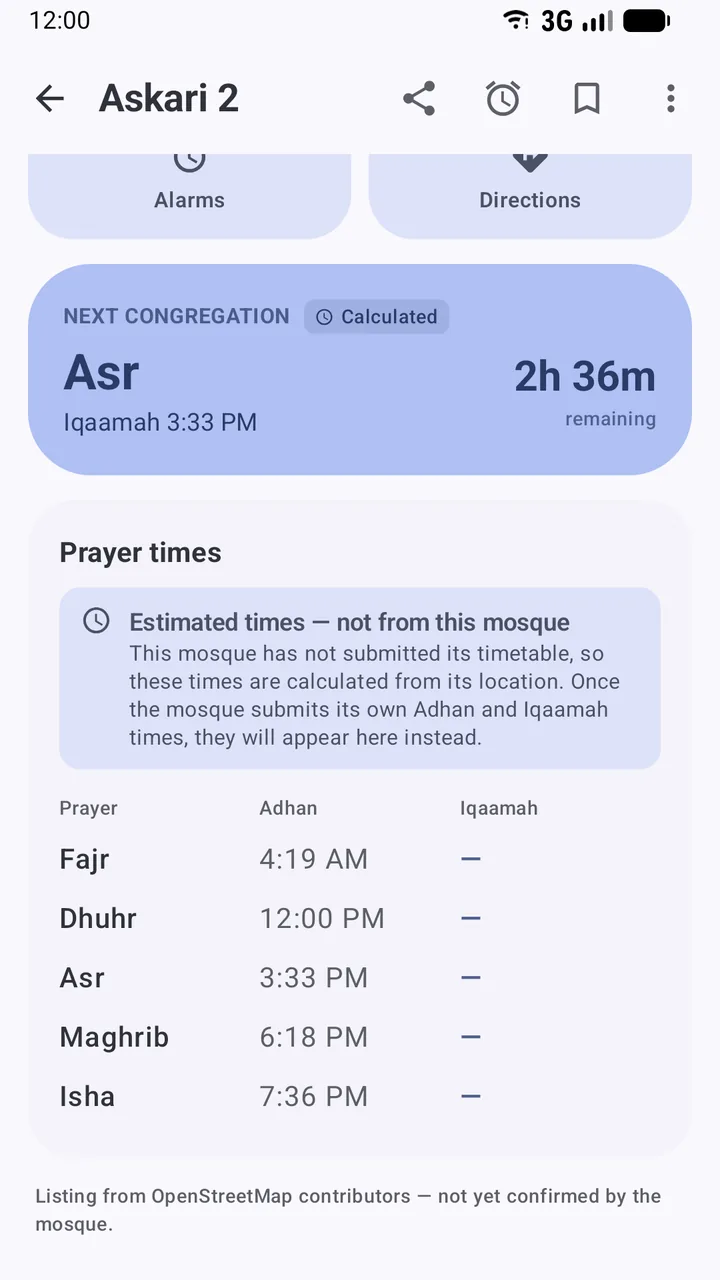
Tap the widget to open the Salah Locator app.
How often it updates
The widget refreshes about every 30 minutes, so the countdown moves in steps rather than by the second. Open the mosque in the app for an exact, live countdown.
Each refresh fetches the mosque's timetable, so the widget needs a connection to stay current. If it can't connect, it may show dashes until the next successful refresh. Your prayer reminders don't depend on the widget: they are scheduled on the phone and ring either way. See what works offline.
Change or remove the widget
To show a different mosque or theme, long-press the widget, remove it, and add it again. You can add several widgets for different mosques, for example home and work.
Want an alert rather than a glance? Set up prayer reminders. To keep your usual mosques near the top of the widget's list, save them first.
Frequently asked questions
Can I have widgets for more than one mosque?
Yes. Add the widget again and choose a different mosque. Each widget remembers its own mosque and theme.
How do I change the mosque a widget shows?
Remove the widget from your home screen and add it again, choosing the new mosque. The mosque is picked when the widget is added.
Why does my widget show dashes?
The widget shows dashes when it has no times to display, for example when it could not reach the internet at its last refresh. Check your connection; the widget refreshes about every 30 minutes.
Does the widget show Adhan or Iqaamah times?
It shows each prayer's Iqaamah time where the mosque has published one, and the Adhan time otherwise. For a mosque with no published timetable it shows estimated times based on your calculation settings.
Was this article helpful?
Related articles
- Use Salah Locator offline: what works without a connectionMosque pages you've opened stay on your phone for up to 30 days, alarms are scheduled on the device and the Qibla finder works from GPS. Pray Now and new searches need a connection.
- Set up prayer reminders and fix alarms that don't ringOpen a mosque, tap Alarms, choose Adhan or Iqaamah and switch on the prayers you want. If reminders are late or silent, allow exact alarms and notifications and lift battery limits.
- Read a mosque's timetable: Adhan, Iqaamah and estimated timesAdhan is the call to prayer; Iqaamah is when the congregation stands. A note under each timetable says whether the times come from the mosque, a correction or a calculation.
- Find Jumuʼah, Ramadan, Tarawih and Eid prayer timesJumuʼah has its own row in each mosque's timetable. In Ramadan a mosque can switch to a seasonal timetable and publish Sehri, Iftar, Tarawih and Eid times, which appear as the dates approach.
Need a hand?
Email us what you see on screen — a screenshot helps — and we'll walk you through it.