Add your mosque to Salah Locator or claim an existing listing
In short
Create an ordinary account, then choose Register a mosque in the app or on your web dashboard. If the mosque is already listed with no administrator, claim it in the app instead of adding a duplicate.
On this page
Anyone can put a mosque on Salah Locator: an imam, a committee member or someone who simply prays there. Create an ordinary account, then choose Register a mosque in the Android app's Profile, or + Register a mosque on your website dashboard. The listing stays private until a platform administrator approves it. If the mosque is already listed and nobody looks after it, claim that listing instead of adding a second one.
Before you start: is it already listed?
Search for the mosque on Find or Browse first. Many mosques were imported from OpenStreetMap and say Listing from OpenStreetMap contributors — not yet confirmed by the mosque. If yours is one of them, claiming it keeps the mosque in one place, rather than splitting its followers between two half-updated listings.
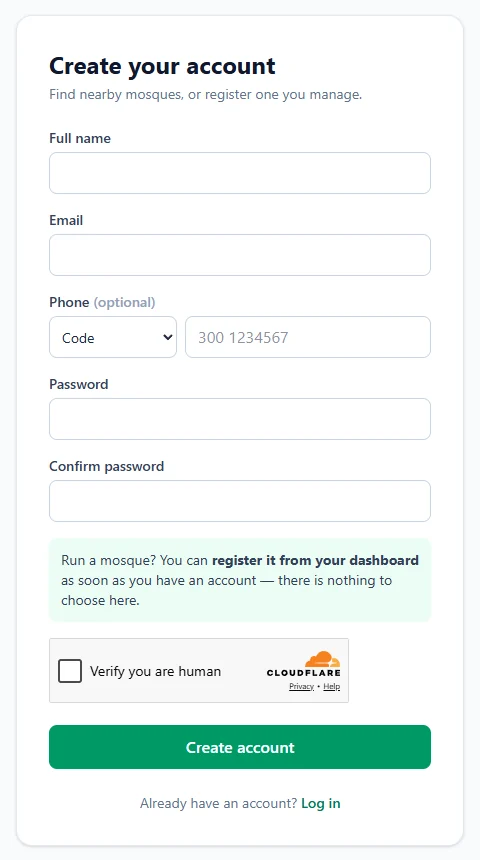
Create your account
On the website, tap Register. In the app, open Profile → Sign in → Create an account. You need a full name, an email and a password; a phone number is optional.
Add a mosque in the app
- Open Profile and tap Register a mosque. (If you already manage one, tap My mosques, then + Register a mosque.)
- Where is it? Search for the mosque or its address, or tap the map and drag the pin onto the building. If you are standing in the mosque, tap Use my current location. The app shows how accurate the position is.
- The app shows Checking whether this mosque is already listed…. If it finds listings nearby, it shows them with the distance and three choices: View, That is mine — claim it (for listings with no administrator) or None of these — continue. A listing that says Already has an administrator can't be claimed.
- Name and address. Enter the Mosque name and check the Street address, which is filled in from the pin, then the country and city.
- Contact and facilities. All optional: phone, email, website, the imam's name, capacity, a description, what the mosque has (parking, wudu area and so on) and a cover photo.
- Prayer times. Enter the Adhan and Iqaamah for each prayer, or tap Skip — add prayer times later.
- Check and submit. Look over the summary and tap Submit for approval, then Continue to your mosque.
Add a mosque on the website
- Sign in and open Dashboard.
- In the sidebar, choose + Register a mosque. (Already manage one? Open Your Mosques and tap + Add a mosque.)
- Fill in Basic details: the mosque name (English is required; you can add other languages in the tabs), the imam's name, capacity and a main photo.
- Under Location, enter the Address, choose the country and city, and set the Timezone. Every prayer time is read in this time zone. Enter the latitude and longitude, or tap 📍 Use my current location while at the mosque.
- Under Contact & facilities, add a phone, email and website, and tick the facilities the mosque has.
- Tap Save mosque. You'll see Mosque submitted — it will appear publicly once a Super Admin approves it.
While your listing awaits approval
A new listing is pending and isn't visible to the public yet. You can already fill in everything, so it is complete the day it goes live. On the website, Your Mosques shows each listing's state: Live, Awaiting approval, Not approved or Hidden, and flags No prayer times yet where a timetable is missing. The app marks a pending listing Awaiting approval.
Claim a listing nobody manages
If the mosque is already on Salah Locator with no administrator:
- Open its page in the Android app and tap the three-dot menu at the top right.
- Choose Claim this mosque. (It only appears on listings with no administrator.)
- Pick Your role at this mosque: Imam, Committee member or Other.
- Under How can we verify you?, add something that helps, such as a phone number on the mosque's own notice board.
- Tap Submit claim. An administrator reviews it, and once it's confirmed you manage the listing's times, announcements and events.
Helping run someone else's listing
If the mosque already has an administrator, ask them first. Contributor access, which gives a second person the same editing rights without taking ownership, is granted by the Salah Locator team: create an ordinary account, then email support@abdohoo.app with the mosque and your account email.
Once your mosque is set up, update its prayer timings and post announcements and events. For advice on keeping a listing trustworthy, read Putting your mosque's prayer times online.
Frequently asked questions
Do I need a special imam account to add a mosque?
No. Any ordinary account can register a mosque. You become its administrator by registering it; there is nothing to choose when you sign up.
How long before my mosque appears publicly?
New listings start as pending and stay private until a platform administrator approves them. You can keep filling in timings, announcements and photos while you wait.
The mosque is already listed. What should I do?
Don't add a second copy. If the listing has no administrator, open it in the app, tap the three-dot menu and choose Claim this mosque. If it already has one, ask them to help, or contact the Salah Locator team about contributor access.
Can one account manage several mosques?
Yes. You can register more than one mosque, and a platform administrator can also add you as a contributor to mosques someone else registered. They all appear under My mosques.
Does it cost anything to list a mosque?
No. Listing and managing a mosque is free, with no ads and no fees.
Was this article helpful?
Related articles
- Post announcements, events and live streams for your mosqueIn Manage Mosque, open Announcements, Events or Live Streams, tap + New, fill in the form and save. A new announcement or event that is published straight away notifies everyone who saved your mosque.
- Update your mosque's prayer timings, Ramadan and Eid timesOpen Manage Mosque → Prayer Timings on the website, or My mosques → your mosque → Prayer timings in the app, enter Adhan and Iqaamah for each prayer and Jumuʼah, and save. Changes show at once.
- Find the nearest mosque and change the search radiusOn the website, tap Use my location and choose 5, 10, 15 or 25 km; results are sorted by distance and can be shown on a map. In the app, Find lists mosques within 15 km of you.
- Install Salah Locator and set it up on your Android phoneInstall Salah Locator free from Google Play (Android 8.0 or later), then tap the location button on Find and allow location. Mosques, timetables and Pray Now work without an account.
Need a hand?
Email us what you see on screen — a screenshot helps — and we'll walk you through it.