Post announcements, events and live streams for your mosque
In short
In Manage Mosque, open Announcements, Events or Live Streams, tap + New, fill in the form and save. A new announcement or event that is published straight away notifies everyone who saved your mosque.
On this page
To post news for your mosque, sign in, open Manage Mosque on the website (or Profile → My mosques and your mosque in the app), choose Announcements, Events or Live Streams, tap + New, fill in the form and save. Posts appear on your public page straight away. A new announcement or event that is published when you first save it also notifies everyone who has saved your mosque, in the app and by email.
Post an announcement on the website
- Open Dashboard → Manage Mosque and choose the Announcements tab.
- Tap + New.
- Write the Title (English) and Message (English). Both are required. To add another language, tap its tab (العربية, اردو, Français and others) and write that version too.
- Tick Pin to top to keep it above other announcements.
- Leave Published ticked to post it now, or untick it to save a Draft.
- Drag pictures into Images, or click to choose them.
- Tap Save.
In the list, each announcement shows Pinned or Draft where they apply, and its date. The pin icon pins or unpins it in one tap; Edit and Delete do what they say (you'll be asked to confirm a delete).
Post an event
- Choose the Events tab and tap + New.
- Enter the Title (English required) and a Description, in as many languages as you like.
- Set Starts at, and Ends at (optional).
- Location (defaults to mosque): leave it empty if the event is at the mosque.
- If it will be streamed or recorded, paste a Video / live URL (YouTube, Facebook, Vimeo and similar).
- Add pictures, leave Published ticked, and tap Save.
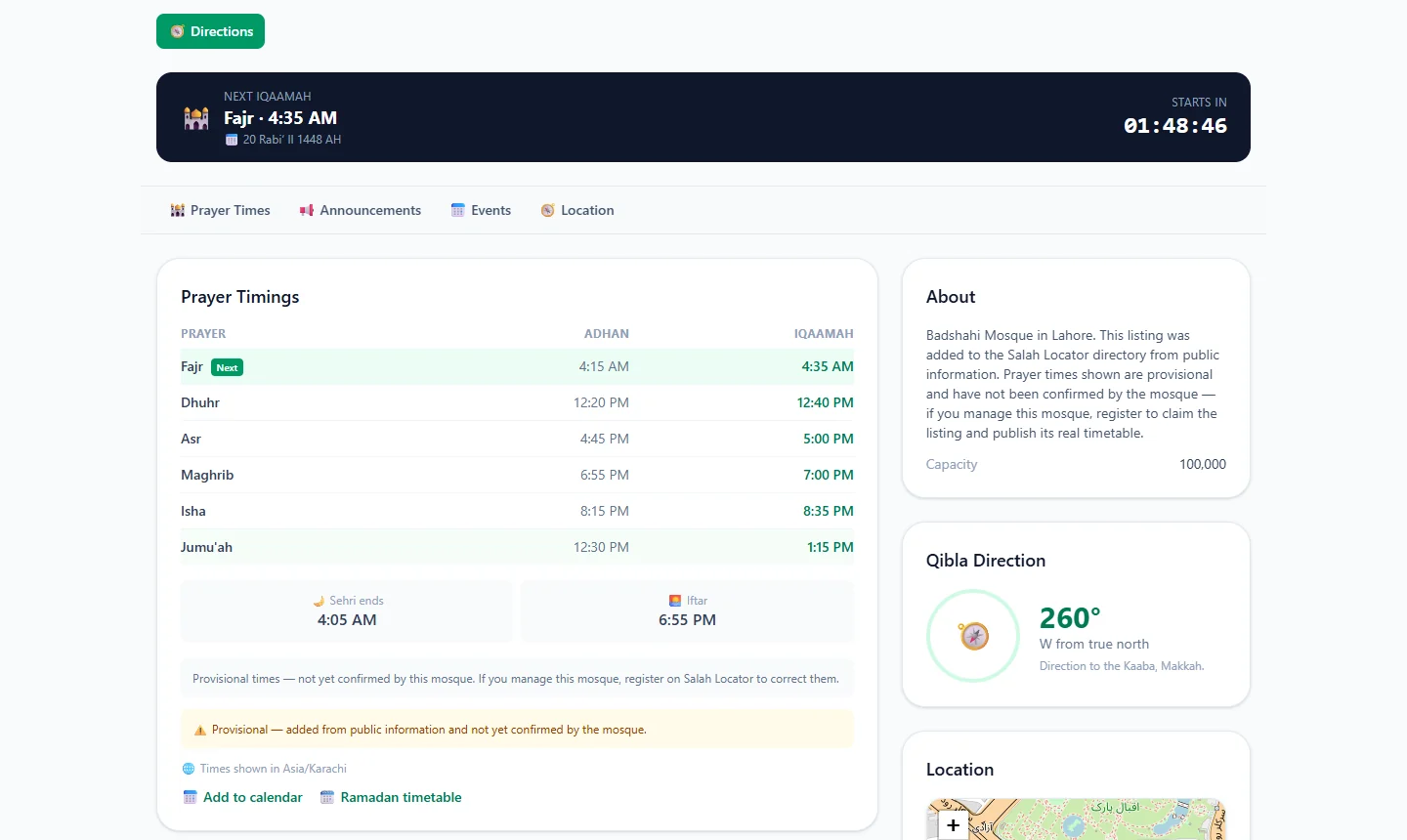
Upcoming events appear under Upcoming Events on your page, each with an Add to calendar link visitors can use.
Set up a live stream
A mosque can have several streams, for example Jumuʼah and a weekly lesson.
- Choose the Live Streams tab and tap + New.
- Give it a Title and paste the Stream URL (YouTube, Facebook, Vimeo and others).
- Under Availability, choose Always live, or Scheduled (time based) and then the Days (leave all unticked for every day) and the From and To times. Times are in your mosque's time zone.
- Keep Active ticked so it shows on your page, and tap Save.
During a scheduled window, visitors see a Live now button and the player on your page; other times, the stream is listed under Broadcast schedule. YouTube, Facebook and Vimeo links play on the page; other links open as a Watch link.
Do it from the app
Open Profile → My mosques and tap your mosque. The management screen lists everything you can edit, including:
- Announcements: tap + for New announcement, with Title, Body, Pinned, Published and Add photos.
- Events: Title, Description, Location, start date and time, Ends (optional), Video or live-stream link (optional) and Published.
- Live streams: Add a stream, with Title, Stream URL, When is it live? (Always on or Scheduled), Days, Start, End and Visible on the mosque page.
- Cover photo, Photo gallery (JPEG or PNG, up to 4 MB each) and Committee.
Tap View public page to check the result as visitors see it.
Keep it appropriate
Visitors can report any announcement, event or photo, and moderators review reports under the site's content policy. Keep posts about your mosque and community, and only include a committee member's phone number or photo with their permission.
To set the times people will come for, see Update your mosque's prayer timings. To see how followers receive your posts, read See a mosque's announcements, events and live streams. Not set up yet? Add your mosque.
Frequently asked questions
Who gets notified when I post an announcement?
Everyone who has saved your mosque. They see it in their Notifications and receive an email. Only new posts that are published when you first save them send notifications; publishing an old draft later does not.
Can I write announcements in Urdu or Arabic?
Yes. The website's forms have tabs for ten languages, including English, Arabic, Urdu, French, Turkish, Indonesian, Malay, Bengali, Persian and Hindi. English is required; visitors see the version in their language where you've written one.
How do I stream Jumuʼah?
Add a live stream with your YouTube, Facebook or Vimeo link. Choose Always live, or Scheduled with the days and the time window, and a Live now button appears on your page during that window.
Can I keep an announcement at the top?
Yes. Tick Pin to top when you write it, or tap the pin icon beside it in the list. Pinned announcements are shown first on your page.
Was this article helpful?
Related articles
- Add your mosque to Salah Locator or claim an existing listingCreate an ordinary account, then choose Register a mosque in the app or on your web dashboard. If the mosque is already listed with no administrator, claim it in the app instead of adding a duplicate.
- Update your mosque's prayer timings, Ramadan and Eid timesOpen Manage Mosque → Prayer Timings on the website, or My mosques → your mosque → Prayer timings in the app, enter Adhan and Iqaamah for each prayer and Jumuʼah, and save. Changes show at once.
- See a mosque's announcements, events and live streamsOpen the mosque's page: live streams, announcements (pinned first) and upcoming events sit below the timetable. Save the mosque to be notified when it posts something new.
- Add a mosque's prayer times or events to your calendarOn a mosque's web page, tap Add to calendar under Prayer Timings to download its daily Iqaamah times as a calendar file, or Add to calendar under an event. Download again when times change.
Need a hand?
Email us what you see on screen — a screenshot helps — and we'll walk you through it.