Save your favourite mosques and follow their updates
In short
Sign in, then tap the bookmark on a mosque in the app or the star on the website. Saved mosques appear under Saved on both, and you are notified of their new announcements and events.
On this page
To save a mosque, sign in and tap the bookmark icon at the top of the mosque's page in the app, or the star (☆) on its card or page on the website. Saved mosques appear under Saved in both places because they belong to your account, and saving a mosque also follows it: you are notified when it posts a new announcement or event.
Create an account first
Saved mosques need an account. It is free and takes a minute.
- In the app: open Profile, tap Sign in, then Create an account.
- On the website: tap Register at the top of sl.abdohoo.app.
Enter your Full name, Email and a Password (at least 8 characters), and confirm it. A phone number is optional. There is nothing to choose if you run a mosque: you can register it from your profile or dashboard later.
Save a mosque in the app
- Open the mosque from Find, Browse or Pray Now.
- Tap the bookmark icon in the top bar. It fills in when the mosque is saved.
- Open the Saved tab to see all your saved mosques.
If you aren't signed in, tapping the bookmark takes you to the sign-in screen first. Until you save one, the Saved tab says No saved mosques yet — Tap the bookmark on any mosque to save it here.
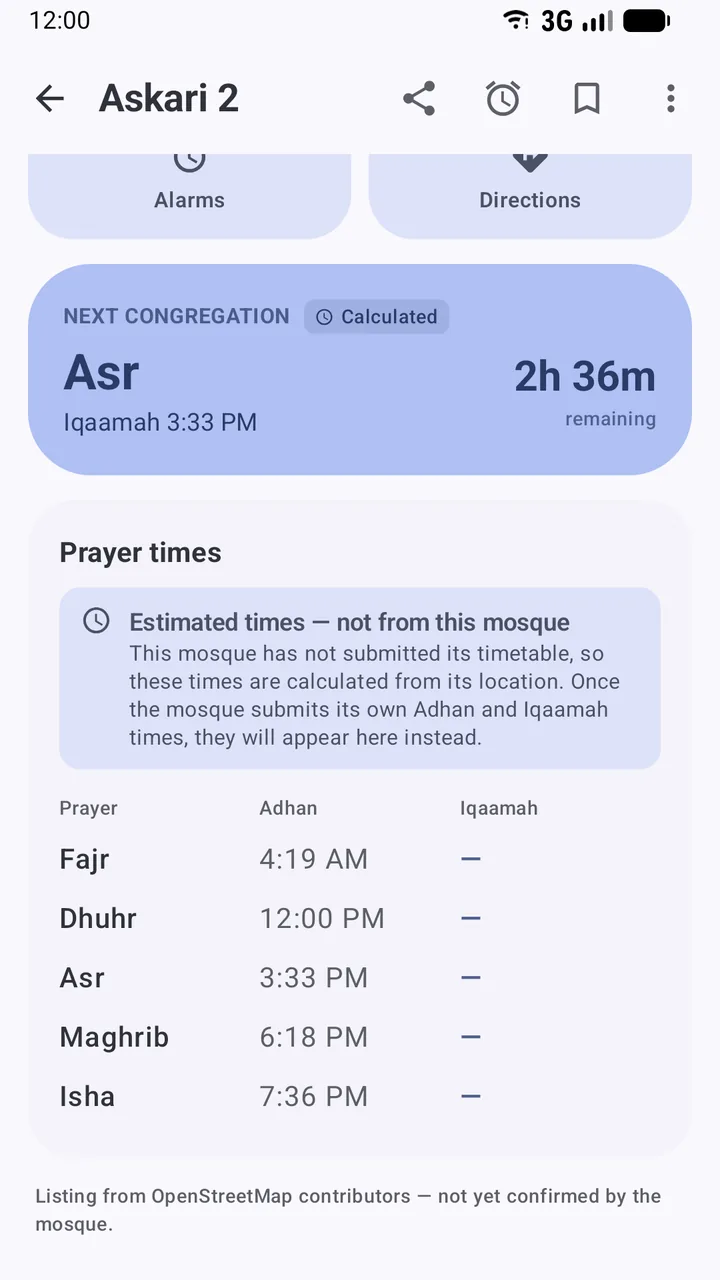
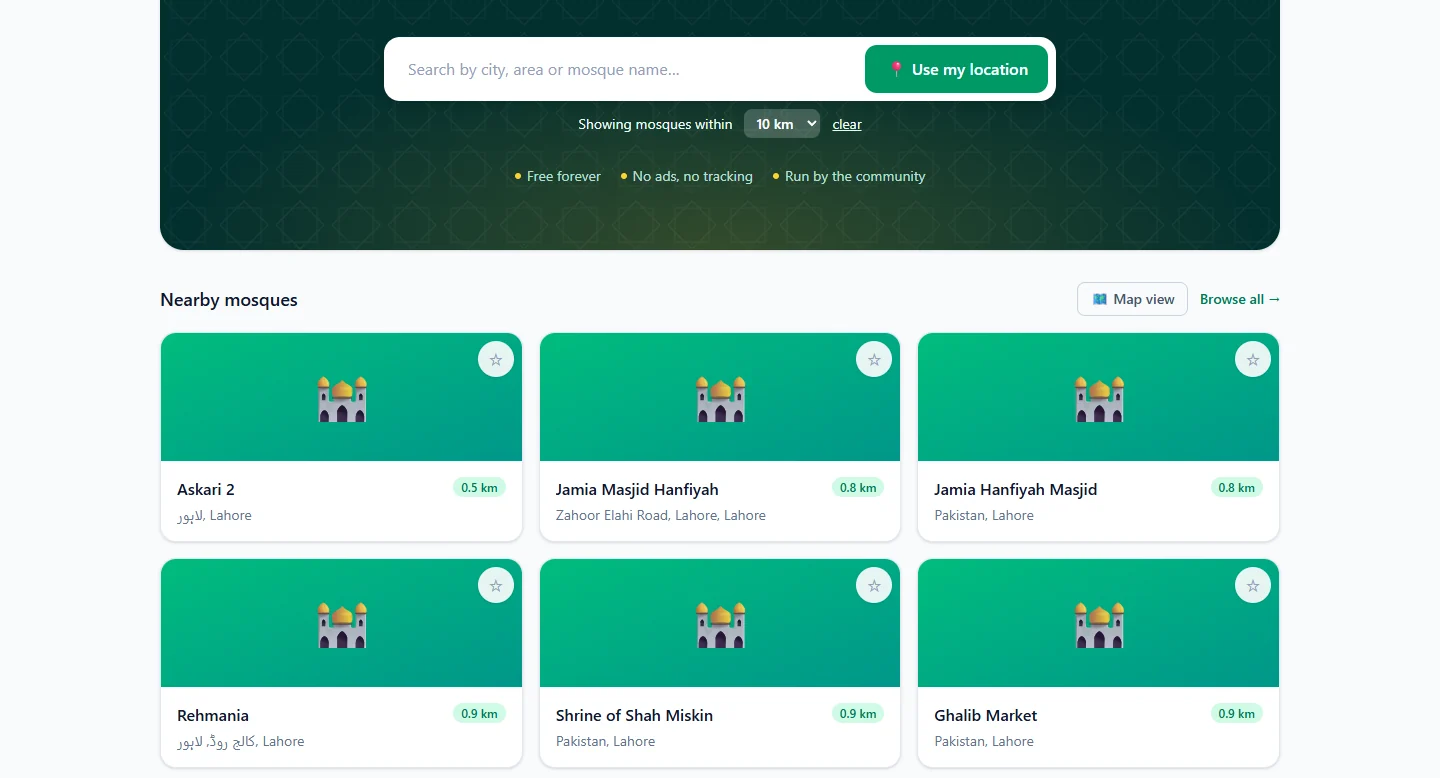
Save a mosque on the website
- Sign in, then find the mosque on Find or Browse, or open its page.
- Tap the ☆ star in the corner of its card, or at the top right of the mosque's photo on its page. It turns into a filled star.
- Open Saved in the top menu to see your list, headed Mosques you've bookmarked for quick access.
To remove a mosque, tap the filled bookmark or star again.
Follow a mosque's updates
Saving a mosque follows it. When its administrator publishes a new announcement or event, you'll get:
- an entry in Notifications: the bell at the top of Find in the app (or Profile → Notifications), and the bell at the top of the website
- an email to your account address
Tap Mark all read in the app to clear the list. To stop getting a mosque's updates, remove it from Saved.
Prayer reminders are separate and don't need an account: see Set up prayer reminders.
Your saved mosques on every device
Because saved mosques are stored with your account, signing in on another phone or on the website brings the same list. In the app you can also switch on Sync settings to my account under Profile to carry your theme, language and last location across devices.
The last Saved list the app loaded stays on your phone, so you can still open it without a connection.
On the website, your Dashboard also lists Your saved mosques with a View → link to each, and the Saved Mosques link in the dashboard sidebar opens the full list.
Saved mosques also appear first when you add the home-screen widget. To see what a saved mosque has posted, read announcements, events and live streams.
Frequently asked questions
Do I need an account to save mosques?
Yes. Saved mosques belong to your account, which is how they appear on both the app and the website. Creating an account takes a name, an email and a password.
Will saving a mosque send me notifications?
Saving a mosque follows it. When it publishes a new announcement or event, it appears in your Notifications and you are sent an email.
How do I remove a mosque from Saved?
Open the mosque and tap the filled bookmark in the app, or the filled star on the website. It is removed straight away.
Are saved mosques available offline?
The Saved list you last loaded stays on your phone, and any saved mosque you have opened recently can be read offline.
Was this article helpful?
Related articles
- Find the nearest mosque and change the search radiusOn the website, tap Use my location and choose 5, 10, 15 or 25 km; results are sorted by distance and can be shown on a map. In the app, Find lists mosques within 15 km of you.
- See a mosque's announcements, events and live streamsOpen the mosque's page: live streams, announcements (pinned first) and upcoming events sit below the timetable. Save the mosque to be notified when it posts something new.
- Use Pray Now to catch a congregation near youPray Now picks the current prayer and lists nearby mosques whose Iqaamah is still ahead, soonest first, highlighting the earliest one and the one that gives you most time to get there.
- Install Salah Locator and set it up on your Android phoneInstall Salah Locator free from Google Play (Android 8.0 or later), then tap the location button on Find and allow location. Mosques, timetables and Pray Now work without an account.
Need a hand?
Email us what you see on screen — a screenshot helps — and we'll walk you through it.