Install Samee on your phone or computer like an app
In short
Open samee.abdohoo.app, then use your browser's Install app or Add to Home Screen option. Samee then opens full screen from its own icon, with shortcuts to Listen, Practise and Progress.
On this page
You can install Samee from your browser so that it opens from its own icon, full screen, without the address bar. Open samee.abdohoo.app, then choose Install app or Add to Home screen in Chrome or Edge on Android, or Add to Home Screen from the Share menu in Safari on iPhone. Nothing is downloaded from an app store.
Why install it
- One tap to open. Samee gets an icon on your home screen or in your app list, named Samee.
- Full screen. There's no address bar, so more of the mushaf text fits on the screen while you follow a recitation.
- Shortcuts. On Android, and on a computer with Chrome or Edge, long-press or right-click the icon to jump straight to Listen and correct, Practise or Progress.
- Same data, on Android and computers. There the installed app shares the browser's storage, so your sessions and your recently identified list are already in it. iPhones work differently; see below.
An Android app is being prepared. Until it is published, the installed web app is the way to use Samee like an app.
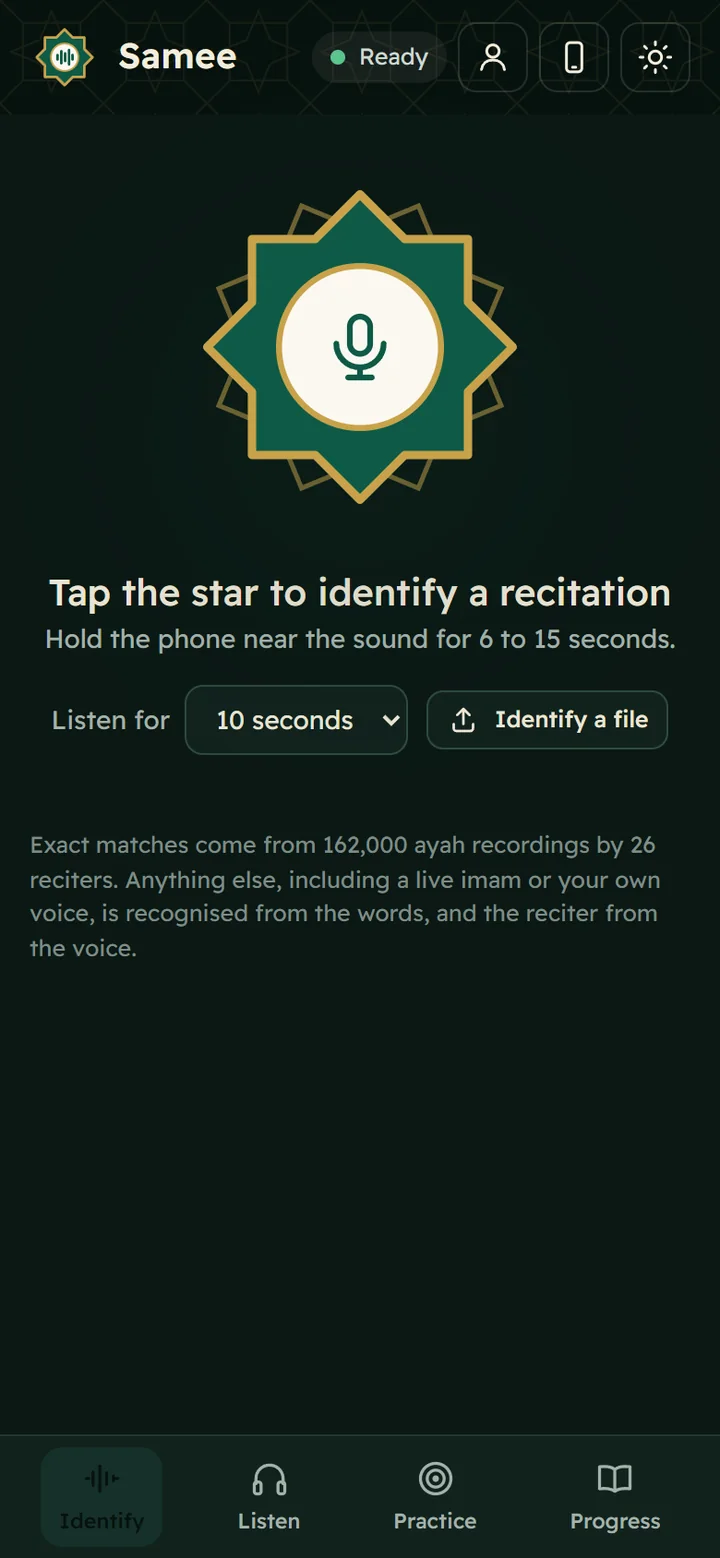
Android: Chrome, Edge or Samsung Internet
- Open samee.abdohoo.app in Chrome.
- Tap the menu (⋮) at the top right.
- Tap Install app or Add to Home screen. The wording depends on your Chrome version.
- Confirm with Install.
The Samee icon appears on your home screen and in your app drawer. In Samsung Internet, tap the menu (≡), then Add page to, then Home screen. In Edge, open the menu (…) and choose Add to phone or Install.
iPhone and iPad: Safari
- Open samee.abdohoo.app in Safari.
- Tap the Share button (the square with an arrow).
- Scroll down and tap Add to Home Screen.
- Keep the name Samee and tap Add.
Open Samee from the new icon. The first time you tap the star, it asks for the microphone again; allow it.
An app added to the Home Screen on an iPhone or iPad keeps its own storage, separate from Safari. It starts as a new device, without the sessions you made in Safari. To bring them across, sign in to an account in both, or create a recovery code in Safari and restore it in the installed app.
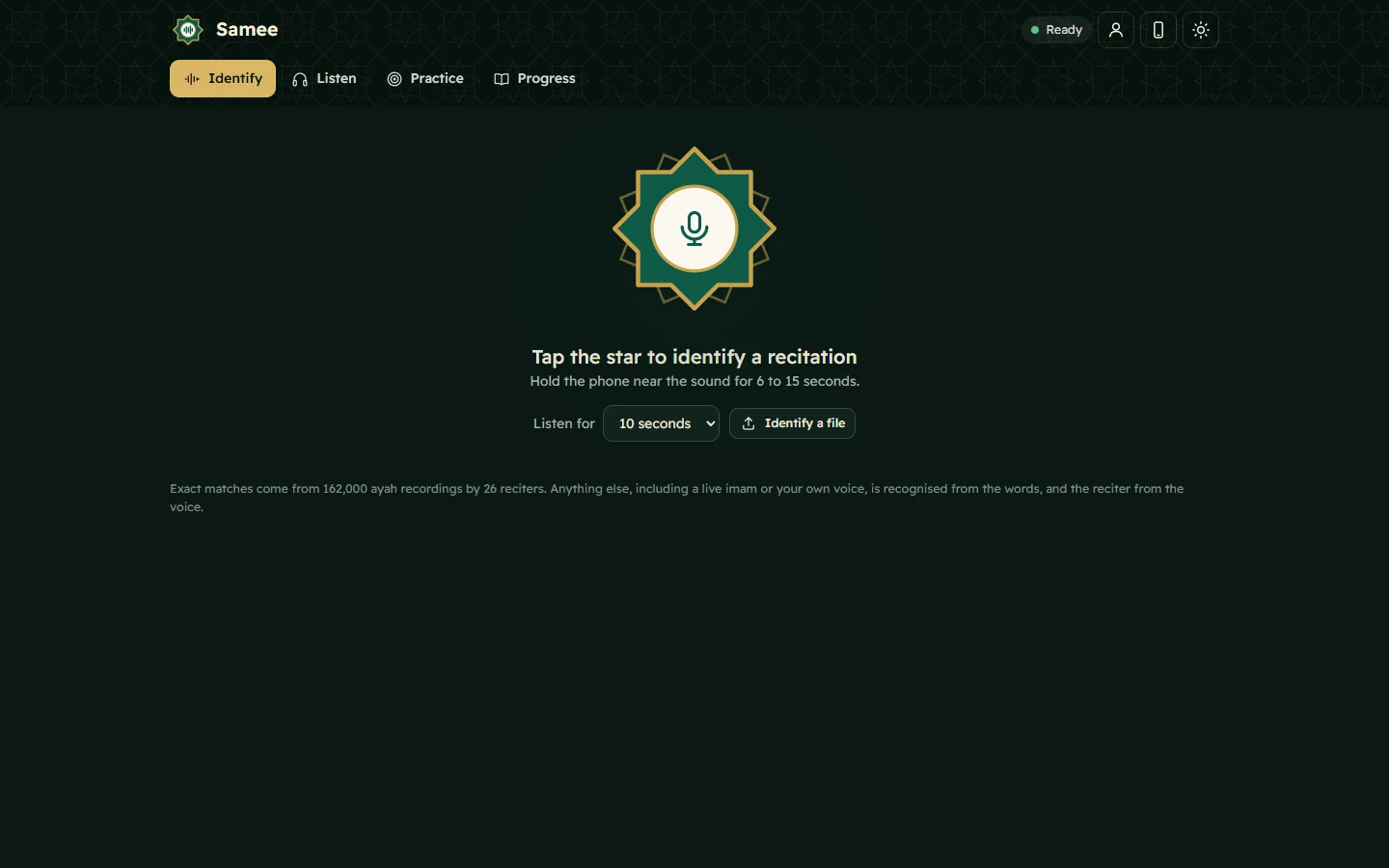
A computer: Chrome or Edge
- Open samee.abdohoo.app.
- Click the install icon at the right of the address bar, or open the browser menu and choose Install Samee (in Chrome it may be under Cast, save and share or Save and share; in Edge, under Apps).
- Click Install.
Samee opens in its own window and appears in your Start menu, Launchpad or app list.
What still needs a connection
The installed app keeps Samee's screens on your device, so they open even without a signal. The work itself happens on Samee's server:
| Works without a connection | Needs a connection |
|---|---|
| Opening the screens | Identifying a recitation |
| Your Recently identified list (kept on the device) | Starting a Listen session or checking a recording |
| Practice attempts, reports, tracks and the khatm map |
Once a Listen session has started, a short drop is fine: the phone keeps the audio, up to 30 minutes of it, and sends it when the connection is back. See follow a reciter live.
Before you rely on it in the mosque
- Allow the microphone once at home (how).
- Try a short Listen session so you know where Stop and save is.
- Check that the pill at the top says Ready.
New to Samee? Start with what Samee is and how to start.
Frequently asked questions
Is there a Samee app on Google Play?
Not yet. An Android app is being prepared. Until then, install the web app from your browser: it opens from its own icon, full screen, like any other app.
Does the installed app work offline?
Its screens open without a connection, but identifying, listening and your saved sessions need the internet, because the recognition runs on Samee's server.
How do I update the installed app?
You don't need to. Whenever you open it with a connection, it loads the latest version of Samee.
How do I uninstall it?
Remove it like any other app: long-press the icon and choose Uninstall or Remove from Home Screen. On a computer, open it and choose Uninstall from its menu. Your data stays on Samee's server until you erase it.
Was this article helpful?
Related articles
- What Samee is and how to start using it in your browserSamee listens to Quran recitation. It names the surah, ayah and reciter, follows a reciter word by word to mark mistakes, and helps you practise. Open samee.abdohoo.app; no sign-up needed.
- Allow the microphone for Samee, and why it needs HTTPSTap the star or Start listening, then choose Allow when the browser asks for the microphone. If you blocked it, re-allow it in the site settings. Browsers only share the microphone over HTTPS.
- Show a Quran translation under each ayah, in your languageOn Listen, pick a translator from Translation under the ayah, or Arabic only. The choice applies to Identify, Listen and Practice in that browser. Practice can also read a translation aloud.
- Follow a Taraweeh imam or a student live, word by wordOn Listen, name the session and its track, choose where it starts and tap Start listening. Samee finds the place, follows each word and lists missed, wrong and skipped words as they happen.
Need a hand?
Email us what you see on screen — a screenshot helps — and we'll walk you through it.