Follow a Taraweeh imam or a student live, word by word
In short
On Listen, name the session and its track, choose where it starts and tap Start listening. Samee finds the place, follows each word and lists missed, wrong and skipped words as they happen.
On this page
To follow a reciter, open Listen, give the session a name and a track, leave Find the place automatically selected and tap Start listening. Samee places the recitation in the Quran after the first few words, then follows it word by word. Missed, wrong and added words, skipped ayahs and long hesitations appear under Findings as they happen, each with a short audio clip. Tap Stop and save at the end to keep the session.
Before you start
- Ask first. If you are recording in a mosque, ask the imam or the mosque. Samee keeps a few seconds of audio around each finding, and the whole recording if you choose to.
- Place the phone where it hears the imam clearly: near a loudspeaker, not by a fan. A stand or shelf is better than holding it.
- Charge it, and keep it on charge for a long night if you can.
- Don't operate your phone while you pray. Set the session up beforehand and review it afterwards, or let someone who isn't praying hold it.
1. Set up the session
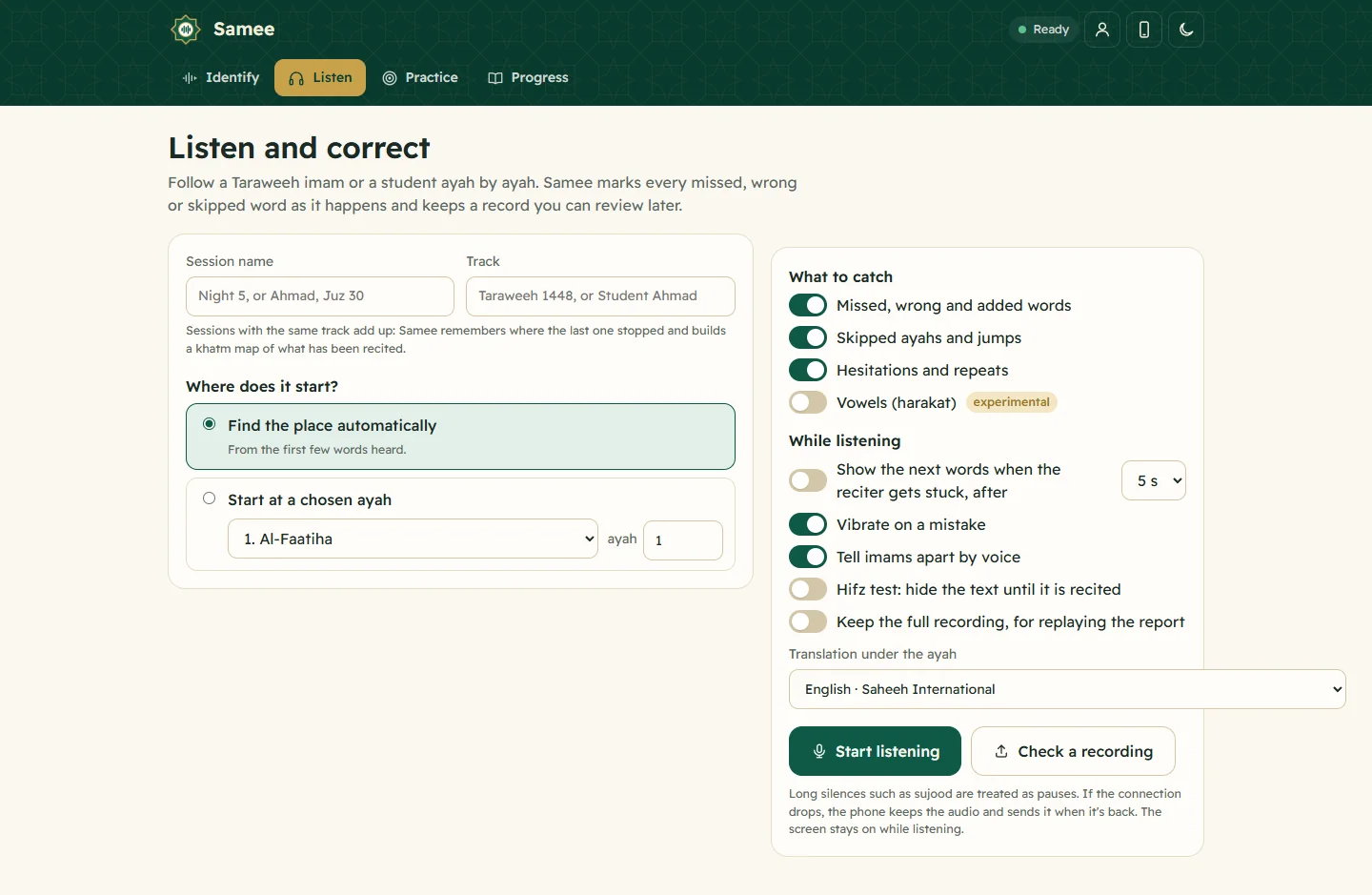
- Session name: anything that helps you find it later, such as Night 5 or Ahmad, Juz 30.
- Track: the name of the khatm or student this session belongs to, such as Taraweeh 1448 or Student Ahmad. Sessions with the same track add up into one khatm map. Samee suggests your existing tracks as you type. See tracks and the khatm map.
- Where does it start?
- Find the place automatically, from the first few words heard.
- Continue and the track name, which appears when the track already has a bookmark: it starts where the last session of that track stopped.
- Start at a chosen ayah: pick the surah and type the ayah.
- What to catch: Missed, wrong and added words, Skipped ayahs and jumps, and Hesitations and repeats are on by default. Vowels (harakat) is an experimental extra; see what each finding means.
- While listening:
- Show the next words when the reciter gets stuck, after 3, 5 or 8 seconds. This is prompting, or talqeen.
- Vibrate on a mistake, on phones that allow it.
- Tell imams apart by voice, when imams take turns (how).
- Hifz test: hide the text until it is recited, for testing your own or a student's memorisation.
- Keep the full recording, for replaying the report. Off by default; without it, Samee keeps only short clips around findings.
- Translation under the ayah: a translation, or Arabic only.
- Tap Start listening and allow the microphone.
2. The live screen
The bar at the top shows what Samee is doing:
| You see | Meaning |
|---|---|
| Waiting for the recitation | Listening, nothing placed yet. |
| Following | Samee knows the place and is following word by word. |
| Lost the place, listening | The recitation went somewhere unexpected; Samee is finding it again. |
| Paused, silence | A long silence, such as ruku or sujood. |
| Paused by you | You tapped Pause. |
Next to it are the timer, a sound-level meter, the name of the voice reciting (when imams take turns) and, if the connection is poor, a connection message.
Below, the header shows the place, for example Surah 2, ayah 255, word 7 of 50. Juz 3, page 42. The current and previous ayahs are shown word by word:
- grey words haven't been recited yet;
- dark words were recited correctly;
- words on a red background were missed or wrong, missed ones dotted underneath;
- red struck-through words belong to a skipped ayah;
- an amber background means a word sounded different;
- a gold line under a word marks a possible vowel difference (experimental).
Tap Page view to see the whole mushaf page with the current ayah highlighted, and Ayah view to go back.
Findings lists what Samee caught, newest first, with counts by kind. Tap Play on a finding to hear the moment. The words Should be and Heard show the difference.
3. Pause, stop and save
- Pause stops sending audio; Resume carries on. On a computer, the Space bar does the same.
- Stop and save ends the session. Samee says Checking the last words for a moment, then Session saved with the range recited, how long it lasted, the counts by kind and, for a track, where the next session will continue.
- From there: Review the findings opens the report, Khatm map opens the track's map, and Start another session sets up the next one with the same track.
If the connection drops
You don't need to do anything. The phone keeps recording and stores the audio, up to 30 minutes, then sends it when the connection is back. The bar shows Connection lost with how much audio is kept on the device, then Sending while it catches up. On networks that block live connections, Samee switches to Slow connection mode and sends the audio in short pieces instead. Either way, Samee hears everything once and in order, so a dropped connection doesn't turn into missed words.
Check a recording instead
If you recorded a recitation earlier, tap Check a recording on the setup screen and choose the audio or video file, up to 300 MB. Samee uploads it (an interrupted upload continues where it left off), says Decoding the recording, then Checking with a percentage, and saves a report like a live session. Fill in the session name and track first if you want it on a khatm map.
Next
Frequently asked questions
Do I have to tell Samee where the imam starts?
No. With Find the place automatically, Samee places the recitation after hearing the first few words. If you know the place, Start at a chosen ayah is faster, and a track can continue from where its last session stopped.
What happens if the Wi-Fi or mobile data drops in the mosque?
The session keeps going. The phone keeps the audio, up to 30 minutes of it, and sends it when the connection is back, so nothing is lost and no false missed words appear.
Can I check a recording I made earlier?
Yes. On Listen, tap Check a recording and choose the file (up to 300 MB). Samee uploads it, follows the whole recitation and saves a report, just like a live session.
Does the screen have to stay on?
Yes. Samee asks the browser to keep it on while listening. If your browser can't, Samee says so; then raise your screen timeout yourself.
How many sessions can run at once?
Up to two live sessions per device. A session that receives no audio and no connection for 10 minutes is closed, and everything heard up to then is saved.
Was this article helpful?
Related articles
- Show the next words when a reciter gets stuck (talqeen)Turn on Show the next words when the reciter gets stuck and pick 3, 5 or 8 seconds. When the reciter goes quiet mid-ayah, Samee shows the next few words on screen so you can prompt them.
- What each marked mistake means: missed, wrong, skipped and moreSamee sorts what it hears into mistakes (missed, wrong or added words, skipped ayahs, jumps), minor notes (sounded different, repeated, hesitated, vowel) and information such as pauses.
- Taraweeh in Samee: rak'ahs, sajdah, qunoot and imams taking turnsSamee expects Taraweeh: a silent basmalah isn't a missed word, each rak'ah's Al-Fatiha is recognised, the sajdah and qunoot are labelled, and imams are told apart by voice.
- Identify a Quran recitation from sound or from a fileOn Identify, tap the star and hold the phone near the recitation for 6 to 15 seconds, or tap Identify a file. Samee names the surah, the ayahs and, where it can, the reciter.
Need a hand?
Email us what you see on screen — a screenshot helps — and we'll walk you through it.