Review a session: the report, its clips and the full recording
In short
Every Listen session is saved with a report: the range recited, findings grouped by ayah with a clip each, and tools to confirm or dismiss, add notes, print, export a spreadsheet or delete.
On this page
Every session you record on Listen, and every recording you check, is saved with a report. Open it from Review the findings when the session ends, or later from Progress → All sessions. The report shows what was recited, every finding grouped by ayah with a short audio clip, and tools to confirm or dismiss findings, add notes, replay the recording, print or export.
Find a session
- Open Progress.
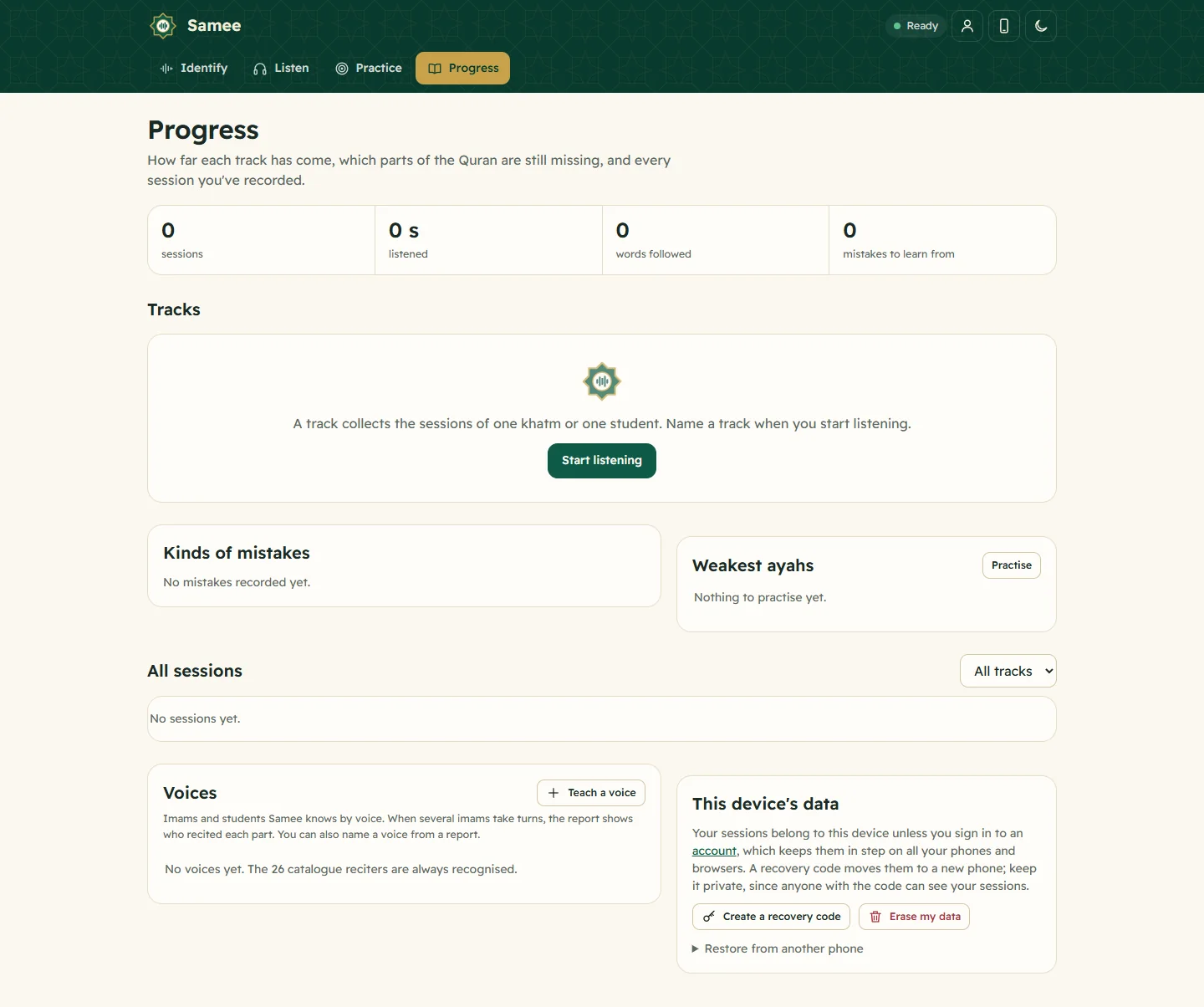
- Scroll to All sessions. Each line shows the name, the date, the track, the length, the range recited and the number of mistakes.
- Use the All tracks menu to show one track only, and Show older sessions to load more.
- Tap a session's name to open its report.
Tags on a line tell you its state: live now (still running), checking (an uploaded recording being analysed), cut off (stopped when the server restarted; saved up to that moment), failed, or recording kept.
What the report shows
At the top: the session name, the date, the track, the file name for an upload, the range recited (for example Al-Baqara 2:142 to Al-Baqara 2:202), how long it lasted and how many words were followed. A practice attempt also says Passed or Not passed.
Counts: the number of each kind of mistake, or No mistakes.
Voices: when imams took turns, each voice with how long they recited. Unknown voices can be named here when the recording was kept (how).
Findings: grouped by ayah, each group with the Arabic text of the ayah, a History button and a Practise button.
Choose what to list with Show: Mistakes (the default), Not reviewed yet, Confirmed, or Everything, with pauses and notes.
Listen to the clips
Every finding has Play, which plays a few seconds of audio around it, and the words Should be and Heard for comparison. If you kept the full recording, two more things appear:
- a player and timeline at the top. Red marks are mistakes, gold marks are worth a listen and, with several imams, the bar is shaded by who was reciting. Tap the bar to jump there.
- In the recording on each finding, which jumps the player to a moment just before it.
Confirm, dismiss and add notes
Go through the findings and tap:
- Confirm when it really was a mistake;
- Dismiss when it wasn't. It then leaves your statistics and practice list;
- Undo to set it back to not reviewed;
- Add a note to write something next to it, such as revise with teacher.
Use Notes for this session for anything about the whole session. Notes save as soon as you leave the box.
Your reviews also help Samee: a kind of finding you dismiss most of the time stops counting as a mistake for you. See what each finding means.
The history of one ayah
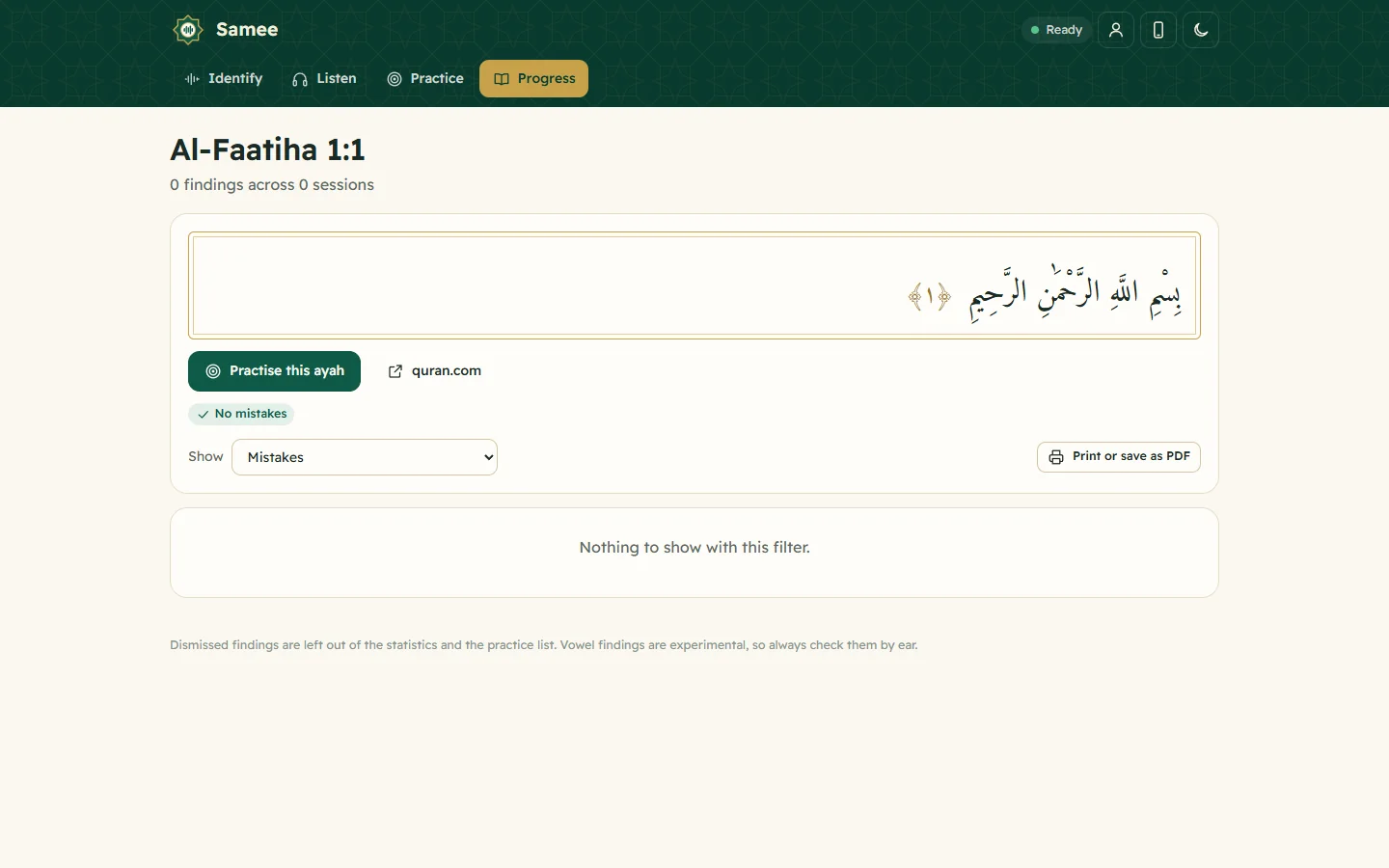
History, next to an ayah, opens every finding on that ayah across all your sessions, grouped by session. It's the quickest way to see whether a mistake keeps coming back. From there, Practise this ayah takes you to Practice.
Print, export and delete
- Print or save as PDF prints the report, without buttons, with your session notes.
- Spreadsheet downloads a CSV file of the findings.
- Recording downloads the full recording, when it was kept.
- Delete removes the session, its findings and its audio. It asks first and can't be undone.
Good to know
- An uploaded recording shows Still checking with a percentage until the analysis ends; the report fills in as it goes.
- Sessions in a track also appear as nights on the khatm map.
- Reports are visible only on your devices. To see them on another phone, use an account or a recovery code.
Frequently asked questions
Where are my saved sessions?
On the Progress tab, under All sessions, newest first. Filter them by track and tap a session to open its report.
Is the whole recitation saved?
Only if you switched on Keep the full recording before you started, or checked an uploaded recording. Otherwise Samee keeps a few seconds of audio around each finding.
Can I share a report with a teacher or student?
Use Print or save as PDF, or Spreadsheet for a CSV file, and send the file. Reports themselves are visible only on your own devices.
How do I delete a session?
Open its report and tap Delete. The session, its findings and its audio are removed, and this can't be undone.
Was this article helpful?
Related articles
- Tracks and the khatm map: see how much has been recitedGive sessions the same track name, such as Taraweeh 1448 or Student Ahmad, and Samee continues each from where the last stopped and draws a khatm map of the mushaf, page by page, with the gaps.
- Follow a Taraweeh imam or a student live, word by wordOn Listen, name the session and its track, choose where it starts and tap Start listening. Samee finds the place, follows each word and lists missed, wrong and skipped words as they happen.
- Identify a Quran recitation from sound or from a fileOn Identify, tap the star and hold the phone near the recitation for 6 to 15 seconds, or tap Identify a file. Samee names the surah, the ayahs and, where it can, the reciter.
- What Samee is and how to start using it in your browserSamee listens to Quran recitation. It names the surah, ayah and reciter, follows a reciter word by word to mark mistakes, and helps you practise. Open samee.abdohoo.app; no sign-up needed.
Need a hand?
Email us what you see on screen — a screenshot helps — and we'll walk you through it.