Allow the microphone for Samee, and why it needs HTTPS
In short
Tap the star or Start listening, then choose Allow when the browser asks for the microphone. If you blocked it, re-allow it in the site settings. Browsers only share the microphone over HTTPS.
On this page
To let Samee hear a recitation, allow the microphone when your browser asks. The question appears the first time you tap the star on Identify, Start listening on Listen or Start reciting on Practice. Choose Allow. If you blocked it by mistake, turn it back on in the browser's site settings for samee.abdohoo.app and reload the page.
When Samee uses the microphone
Samee never listens in the background. The microphone is on only while:
- Identify is listening (6, 10 or 15 seconds, or until you tap the star again);
- a Listen session is running, until you tap Stop and save (while you have it on Pause, nothing is sent);
- you are reciting on Practice, until you tap I'm done or reach the end of the passage.
While Samee listens it asks the browser to keep the screen on, because a locked phone usually stops recording. If your browser can't do that, Samee shows Keep the screen on yourself: this browser can't do it for Samee. Then raise your screen timeout for the session.
Samee also asks the browser not to apply echo cancellation or noise suppression. Those filters are made for phone calls and tend to cut out a reciter heard through a loudspeaker.
Allow the microphone
Chrome or Edge on Android
- Tap the star on Identify.
- When Chrome asks whether samee.abdohoo.app may use your microphone, tap Allow (or While visiting the site, depending on your version).
If you blocked it earlier:
- Tap the icon to the left of the address bar.
- Tap Permissions (or Site settings) and turn Microphone on.
- Reload the page.
If the site is allowed but it still fails, check that Chrome itself may use the microphone: Android Settings → Apps → Chrome → Permissions → Microphone.
Safari on iPhone and iPad
- Tap the star. Safari asks whether samee.abdohoo.app may access the microphone; tap Allow.
- If you refused, tap aA in the address bar, then Website Settings, and set Microphone to Allow or Ask.
Safari may ask again on later visits; that is normal.
On a computer (Chrome, Edge, Safari, Firefox)
- Click the icon at the left of the address bar.
- Set Microphone to Allow for samee.abdohoo.app and reload.
- If nothing is heard, check your system settings: on Windows, Settings → Privacy & security → Microphone; on a Mac, System Settings → Privacy & Security → Microphone, and make sure your browser is switched on.
Messages you may see
| Message | What it means | What to do |
|---|---|---|
| Microphone access was blocked. Allow it in the browser's site settings and try again. | The permission was refused. | Allow it as above and reload. |
| No microphone was found on this device. | The browser can't find any microphone. | Plug in or enable a microphone, or use your phone. |
| This browser can't record audio. | The browser is too old or restricted. | Use an up-to-date Chrome, Safari, Edge or Firefox. |
| This page isn't secure, so the browser blocks the microphone. | The page was opened without HTTPS. | Open https://samee.abdohoo.app. |
Some apps open links in their own built-in browser, which may not offer the microphone at all. If the star does nothing, open the link in Chrome or Safari instead. Another app holding the microphone, such as a call, can also stop Samee from using it.
Why Samee needs HTTPS
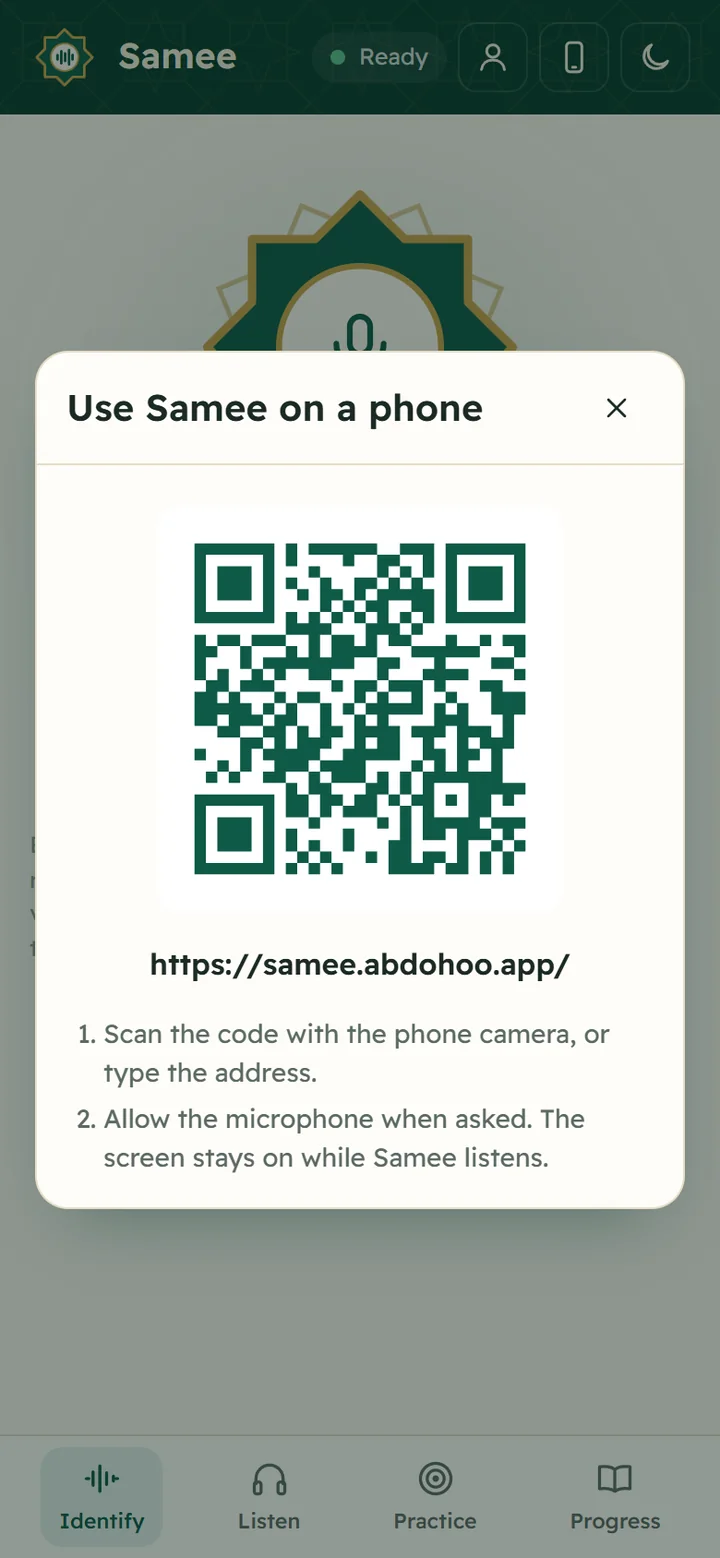
Browsers only let a web page use the microphone, and keep the screen awake, when the page is served over a secure connection (HTTPS). That protects you from a page on an untrusted network quietly listening in. Samee is always served at https://samee.abdohoo.app, so you only meet this message if you open a copy of the page without HTTPS. Type the address with https:// or scan the QR code from the phone button.
Still not working?
- Check the pill at the top. Recogniser offline or Offline is a connection problem, not a microphone problem.
- Close other tabs or apps that might be recording.
- Reload the page after changing any permission.
Once the microphone works, identify your first recitation or install Samee so it opens like an app. To see what happens to the audio, read privacy and what Samee stores.
Frequently asked questions
Why doesn't Samee ask for the microphone when I open it?
Samee asks only when it needs to listen: when you tap the star on Identify, Start listening on Listen, or Start reciting on Practice. Opening the site doesn't touch the microphone.
Samee says Microphone access was blocked. What do I do?
You, or the browser, refused the microphone earlier. Open the site settings for samee.abdohoo.app (the icon to the left of the address), set Microphone to Allow, reload the page and try again.
Does Samee record me all the time?
No. The microphone is used only while you identify, listen or practise, and stops when you stop. Audio sent to identify a recitation is analysed and then discarded.
Why does the screen stay on while Samee listens?
A phone that locks its screen usually stops the browser from recording. Samee asks the browser to keep the screen on while it listens. If your browser can't, Samee tells you, and you need to keep the screen on yourself.
Was this article helpful?
Related articles
- What Samee is and how to start using it in your browserSamee listens to Quran recitation. It names the surah, ayah and reciter, follows a reciter word by word to mark mistakes, and helps you practise. Open samee.abdohoo.app; no sign-up needed.
- Install Samee on your phone or computer like an appOpen samee.abdohoo.app, then use your browser's Install app or Add to Home Screen option. Samee then opens full screen from its own icon, with shortcuts to Listen, Practise and Progress.
- Show a Quran translation under each ayah, in your languageOn Listen, pick a translator from Translation under the ayah, or Arabic only. The choice applies to Identify, Listen and Practice in that browser. Practice can also read a translation aloud.
- Follow a Taraweeh imam or a student live, word by wordOn Listen, name the session and its track, choose where it starts and tap Start listening. Samee finds the place, follows each word and lists missed, wrong and skipped words as they happen.
Need a hand?
Email us what you see on screen — a screenshot helps — and we'll walk you through it.