Account or anonymous device: recovery codes and adding a device
In short
Without an account, each browser keeps its own sessions; a six-word recovery code moves them. An account (username and password, no email) shares them across devices. Add one with an 8-character code.
On this page
You can use Samee without an account: the first time you open it, your browser registers anonymously and keeps its own sessions, tracks and practice. To move that data to a new phone, create a recovery code of six words. If you use Samee on more than one phone or browser, create an account with a username and password, no email needed: every device signed in to it sees the same sessions. A new device joins with an 8-character code or a QR code from one that is already signed in.
Without an account
Your data belongs to the browser (or installed app) you use. Nothing about you is asked. On Progress, This device's data offers three things:
- Create a recovery code: six words that move this device's sessions to another phone. Keep them private: anyone with the code can see your sessions.
- Restore from another phone: type the six words from your old phone and tap Restore. This device then shows the old phone's sessions instead of its own.
- Erase my data: removes every session, finding, voice and track of this device from the server, after asking.
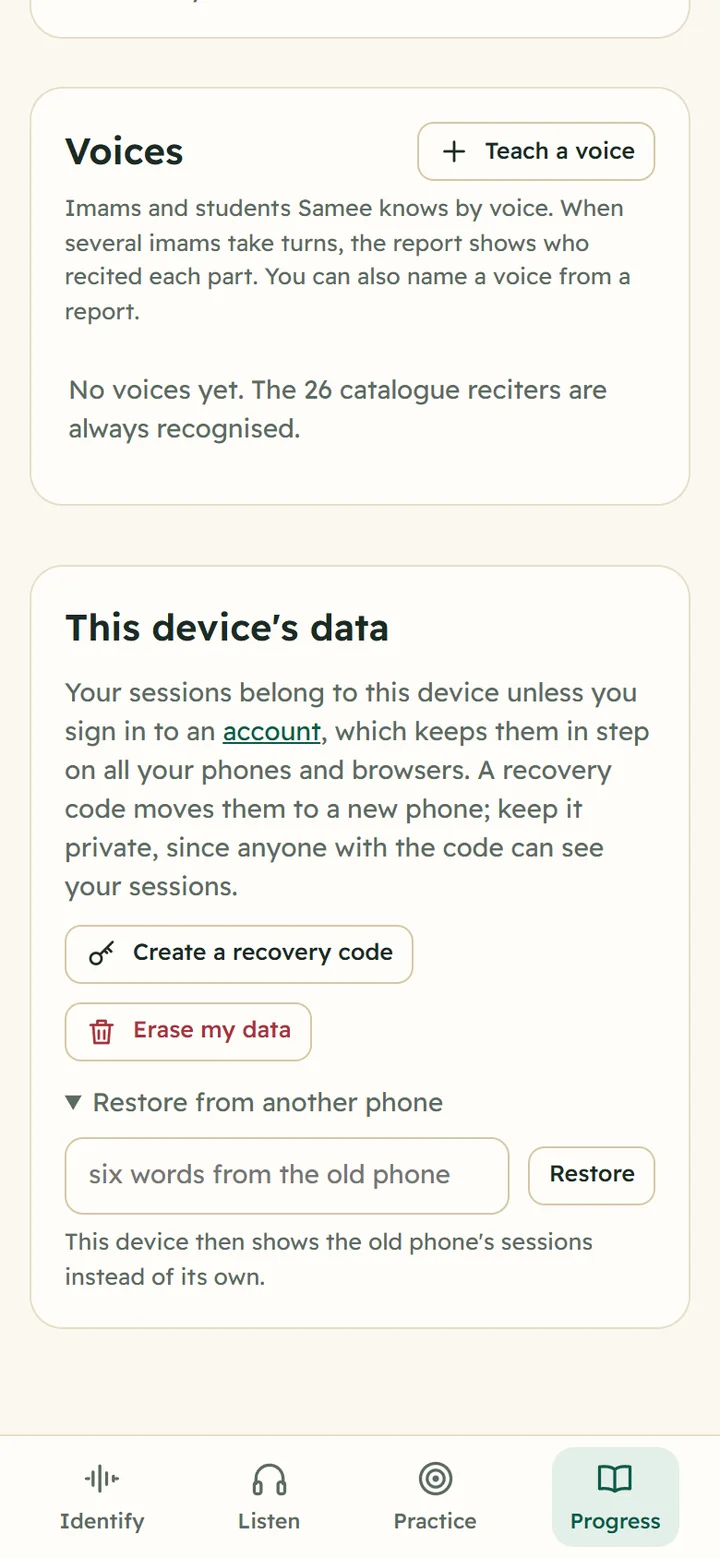
If you clear your browser's data without a recovery code or an account, the browser starts again as a new device and its old sessions can't be reached.
Create an account
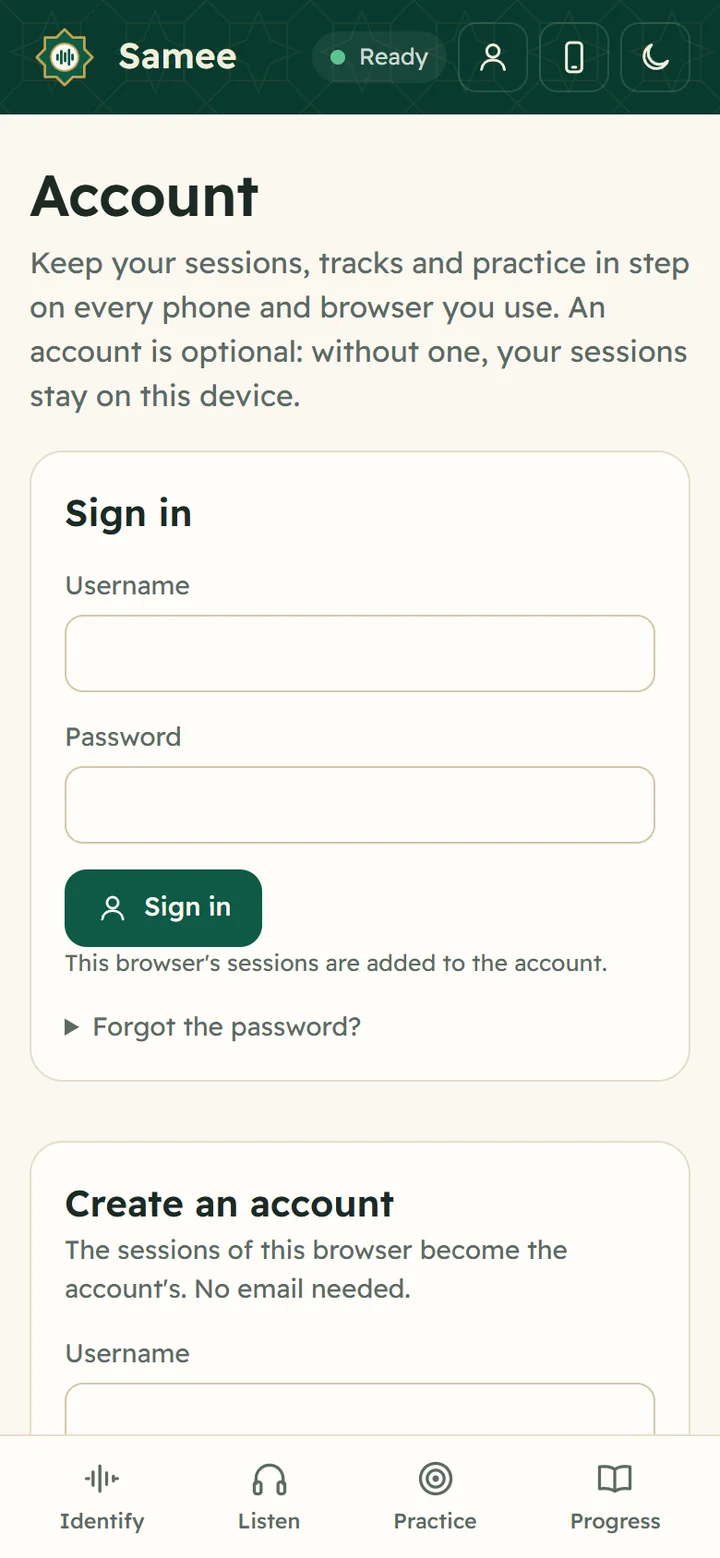
- Tap the person icon at the top (Account).
- Under Create an account, choose a Username (3 to 32 letters, digits, dots, dashes or underscores; capitals don't matter).
- Type a password of at least 8 characters twice and tap Create account.
- Samee shows Save your recovery code: six words. Write them down somewhere safe; they aren't shown again. Tap I've saved it.
The sessions of this browser become the account's.
Add another device
On a device that is already signed in:
- Open Account.
- Under Add a device, tap Show a code. A QR code and an 8-character code such as ABCD-EFGH appear. The code works once, for 10 minutes.
On the new device, either:
- scan the QR code with the phone's camera. Samee opens with Add this device to your account; tap Join the account; or
- open Account in Samee, type the code under Have a code from another device? and tap Join.
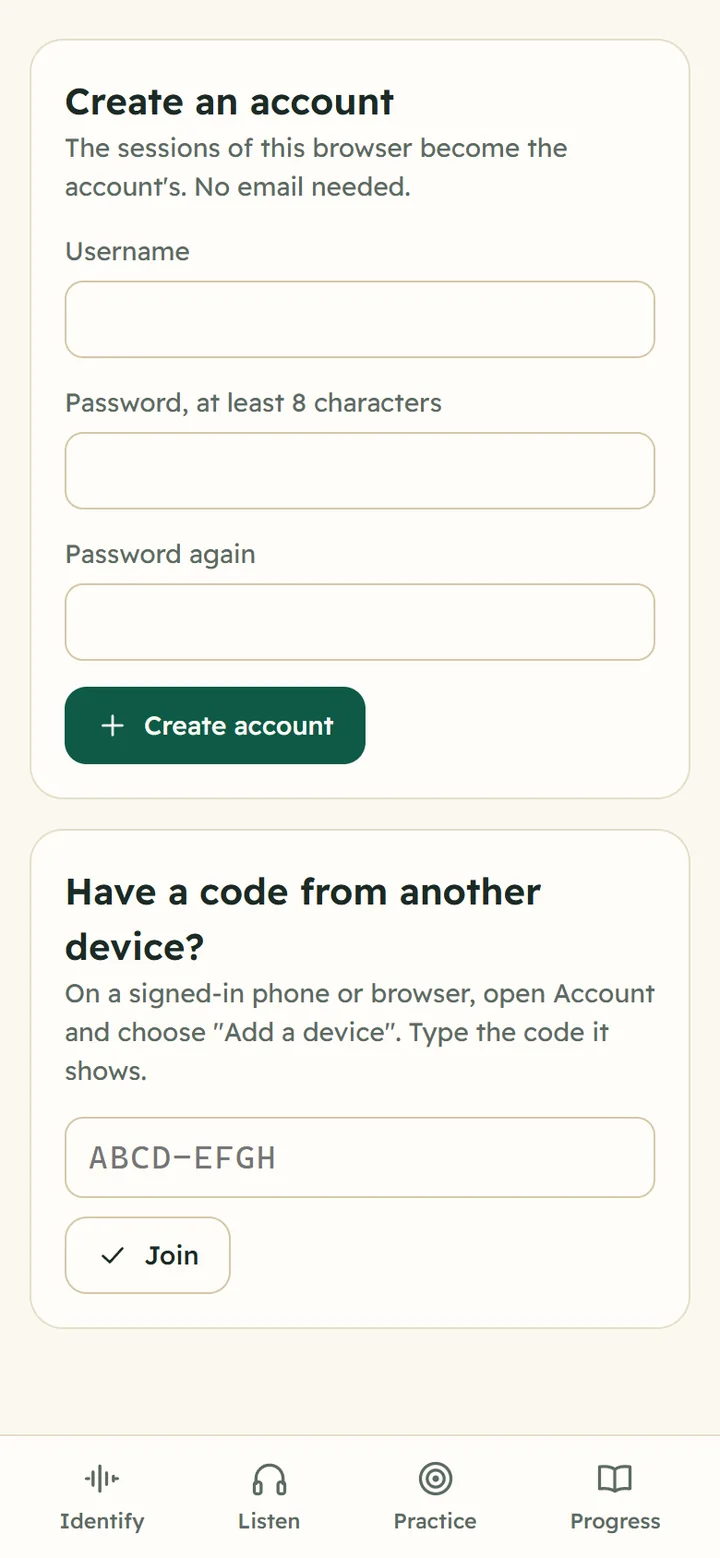
You can also simply Sign in with the username and password. Either way, any sessions the new device already had join the account.
Manage the account
When you are signed in, Account shows:
- Devices: every phone and browser signed in, marked browser or Android app, with when it was last used. this device marks the one you are holding. Tap Sign out next to any other device to remove it.
- Change the password: your current password and a new one.
- Recovery code: Create a new recovery code replaces the old one.
- Delete the account: erases every session, finding, track and voice of the account and signs out all its devices.
Sign out at the top signs this browser out. It then starts again with no sessions; sign back in to see them.
Forgot the password?
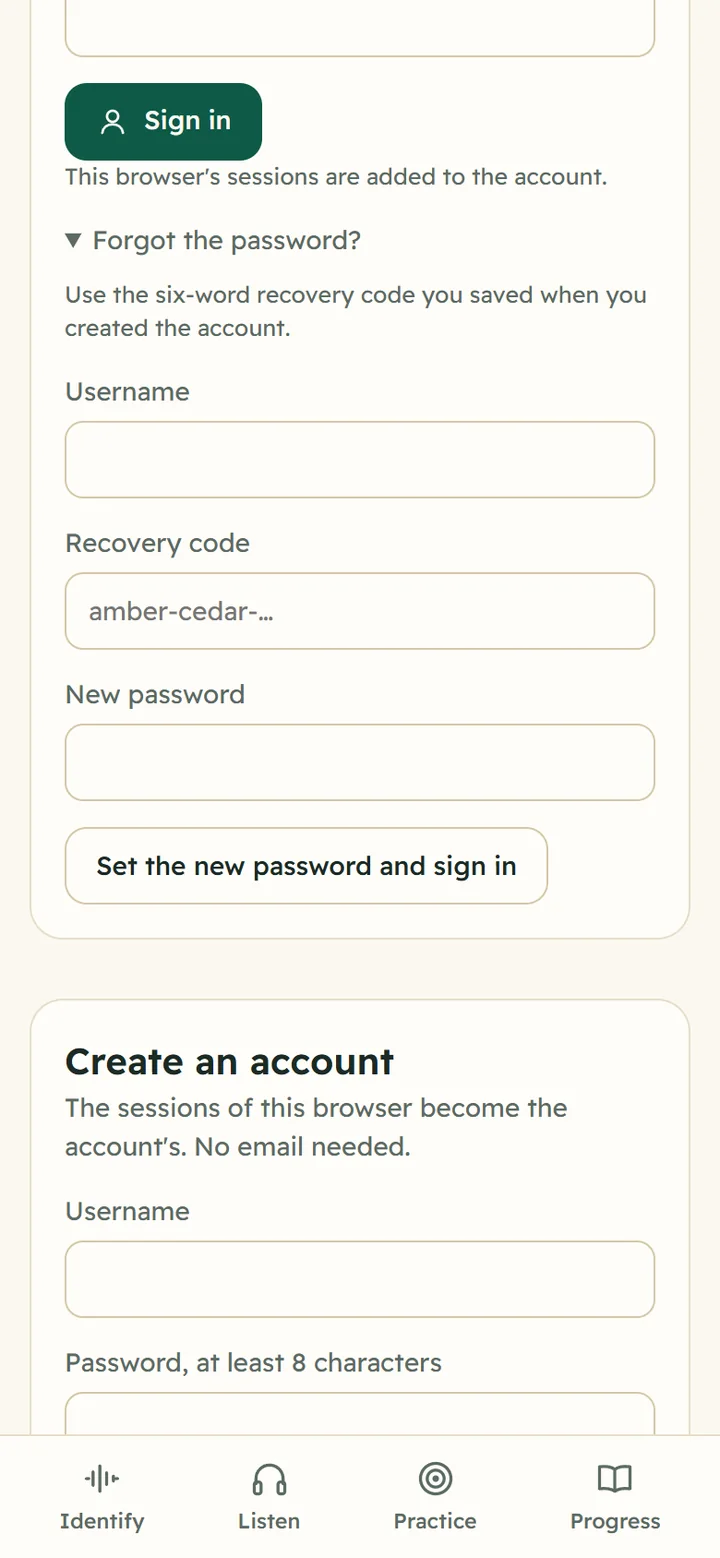
- Open Account and, under Sign in, tap Forgot the password?
- Enter your Username, your six-word Recovery code and a New password.
- Tap Set the new password and sign in.
After eight wrong attempts in 10 minutes, Samee makes you wait before trying again.
Which should I choose?
| Without an account | With an account | |
|---|---|---|
| Sign-up | none | username and password |
| Several phones and browsers | one device each | the same data on all |
| New phone | recovery code | sign in, or a device code |
| Forgotten password | not applicable | recovery code |
What Samee stores in each case is in privacy and what Samee stores. To install Samee on the new phone, see install Samee.
Frequently asked questions
Do I need an email address for a Samee account?
No. An account is just a username and a password of at least 8 characters. Because there's no email, the recovery code you are shown when you create it is the only way to reset a forgotten password.
What happens to the sessions I made before creating an account?
They become the account's. When you sign in on another device that already has sessions, those join the account too.
I lost my recovery code. Can Samee reset my password?
Not without it: Samee stores no email or phone number to verify you. If you are still signed in on any device, open Account there, tap Create a new recovery code and keep it safe; you can then use it under Forgot the password? if you ever need to.
How do I move to a new phone without an account?
On the old phone, open Progress, find This device's data and tap Create a recovery code. On the new phone, open Progress, tap Restore from another phone, type the six words and tap Restore.
Someone else may have my recovery code. What should I do?
Anyone with the code can see your sessions, so make a new one. With an account, Create a new recovery code replaces the old one; also change the password and sign out devices you don't recognise.
Was this article helpful?
Related articles
- Privacy: what Samee stores, and how to delete itSamee keeps your sessions, findings with short audio clips, tracks and practice, linked to an anonymous key or your account. Identify audio is discarded. Delete a session, or erase everything.
- Install Salah Locator and set it up on your Android phoneInstall Salah Locator free from Google Play (Android 8.0 or later), then tap the location button on Find and allow location. Mosques, timetables and Pray Now work without an account.
- Follow a Taraweeh imam or a student live, word by wordOn Listen, name the session and its track, choose where it starts and tap Start listening. Samee finds the place, follows each word and lists missed, wrong and skipped words as they happen.
- Identify a Quran recitation from sound or from a fileOn Identify, tap the star and hold the phone near the recitation for 6 to 15 seconds, or tap Identify a file. Samee names the surah, the ayahs and, where it can, the reciter.
Need a hand?
Email us what you see on screen — a screenshot helps — and we'll walk you through it.