Identify a Quran recitation from sound or from a file
In short
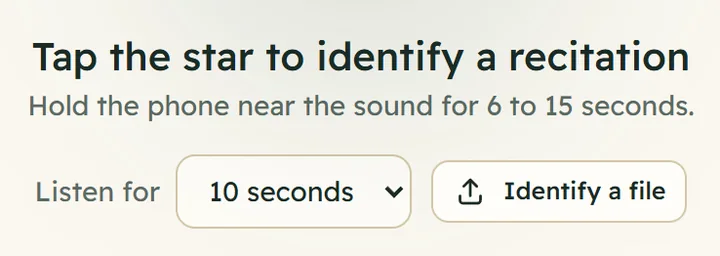
On Identify, tap the star and hold the phone near the recitation for 6 to 15 seconds, or tap Identify a file. Samee names the surah, the ayahs and, where it can, the reciter.
On this page
To identify a recitation, open Identify, tap the star and hold your phone near the sound. After 10 seconds Samee shows the surah, the ayah range and, where it can, the reciter. If the recitation is in a file, a voice note or a video, tap Identify a file instead. Exact matches come from about 162,000 ayah recordings by 26 reciters; anything else, including a live imam or your own voice, is recognised from the words.
Identify from sound
- Open samee.abdohoo.app. Identify is the first screen.
- Check Listen for: 6 seconds, 10 seconds (the default) or 15 seconds.
- Tap the star. Allow the microphone if your browser asks (help).
- Hold the phone near the sound. The caption says Listening… and counts the seconds.
- Samee stops by itself, or tap the star again to stop early. It then says Identifying… and shows the result.
On a computer, the Space bar starts and stops listening too.
Identify from a file
- On Identify, tap Identify a file.
- Choose an audio or video file: MP3, M4A/AAC, WAV, OGG/Opus, WebM, FLAC, or a phone video.
- Samee says Reading and the file name, then shows the result.
Samee reads the first 30 seconds of the file and refuses files larger than about 20 MB. If the recitation you want starts later, trim the file first, or record it with the star while the file plays.
To find out everything in a long recording, such as a full Taraweeh night, use Check a recording on the Listen tab instead. It accepts files up to 300 MB, follows the whole recitation and saves a report that starts with the first and last ayah recited. See follow a reciter live.
How Samee works it out
Samee tries two ways, in order:
- An exact recording. Every catalogue recording (each ayah of the Quran by each of 26 well-known reciters) has an audio fingerprint, a pattern of its sound. If your clip comes from one of those recordings, from the radio, a video or an app, the fingerprint finds it, even with some noise. The result says Matched an exact recording.
- The words. If there's no exact match, a speech recogniser trained on Quran recitation writes down the words it hears, and Samee searches the whole Quran for them. The result says Recognised from the words. The reciter is then named from the voice, if it matches a catalogue reciter closely enough.
That second path is why a local imam, a student, or you yourself can be identified: the surah and ayah come from what was recited, not from who recited it.
Tips for a good result
Distance
- Hold the phone close to the source but not against it: about an arm's length from a loudspeaker, or next to a laptop or radio speaker.
- In a mosque, stand nearer a loudspeaker than the back wall. Echo blurs the words.
- Don't cover the microphone with your fingers or a case. On most phones it's at the bottom edge.
Noise
- Fans, traffic, children and people talking near the phone matter more than a little hiss. Step away from them if you can.
- Recordings of catalogue reciters are matched well even in moderate noise. A live voice needs clearer words, because the words are what identify it.
Length
- 6 seconds is usually enough for a clean recording of a known reciter.
- 10 seconds suits most situations.
- 15 seconds helps with a live imam, a soft voice, a noisy room, or short ayahs whose words also appear elsewhere in the Quran.
- If the clip falls on a pause between ayahs, or on the opening takbir or the isti'adha, try again once the recitation is flowing.
When nothing is identified
Samee says No match this time and gives the reason, for example:
- no recitation heard — the clip is silent or only noise: the phone didn't pick up the voice. Move closer.
- transcript did not match the Quran text confidently: words were heard, but not enough to place them. Listen for longer.
When some words were heard, the panel shows them after Heard, and may list Other possible places. If it says That was too short, let it listen for at least a few seconds.
After the result
The result shows the surah, the ayahs, the reciter, how confident Samee is and buttons to follow along or practise. Read the identify result explains each part. Every match is also added to Recently identified under the star, on this device only.
Frequently asked questions
How long should Samee listen?
Ten seconds, the default, suits most recitations. Choose 6 seconds for a clear recording such as the radio or a video, and 15 seconds for a live imam, a quiet reciter or a noisy room. Less than about a second and a half is too short.
Can Samee identify a recitation from a YouTube or WhatsApp video?
Yes. Play it near the phone and tap the star, or save the file and use Identify a file. Video files work: Samee uses their sound.
Can it identify an imam who isn't a famous reciter, or my own voice?
Yes, the surah and ayah. When the audio isn't one of the catalogue recordings, Samee recognises the words and finds them in the Quran. It names the reciter only if the voice matches one of its 26 catalogue reciters.
Why does a long file only identify the beginning?
Identify a file reads at most the first 30 seconds, and files over about 20 MB are refused. Trim the file to the part you want, or use Check a recording on the Listen tab to follow the whole recording.
Is there a limit on how often I can identify?
Yes: up to 20 identifications a minute per device, which is far more than normal use needs.
Was this article helpful?
Related articles
- Read the identify result: surah, ayah, reciter and confidenceThe result names the surah and ayah range with its juz and page, shows the ayahs, the reciter and how it was found, and a confidence bar. Buttons let you follow along, practise or play the reciter.
- What Samee is and how to start using it in your browserSamee listens to Quran recitation. It names the surah, ayah and reciter, follows a reciter word by word to mark mistakes, and helps you practise. Open samee.abdohoo.app; no sign-up needed.
- Follow a Taraweeh imam or a student live, word by wordOn Listen, name the session and its track, choose where it starts and tap Start listening. Samee finds the place, follows each word and lists missed, wrong and skipped words as they happen.
- Account or anonymous device: recovery codes and adding a deviceWithout an account, each browser keeps its own sessions; a six-word recovery code moves them. An account (username and password, no email) shares them across devices. Add one with an 8-character code.
Need a hand?
Email us what you see on screen — a screenshot helps — and we'll walk you through it.