Saved measurements, export and cloud backup in Shadecard
In short
Tap Save measurement on a result; it appears in My workspace, where you can reopen it, log a dip or promote it. Export makes a file; signing in backs everything up automatically.
On this page
Everything you keep in Shadecard lives in My workspace: saved measurements, favourite shades, your own custom shades and the lab-dip log. Save a reading with Save measurement on the result; reopen it later with Open. To keep a copy off the phone, use Export for a file, or sign in and the app backs up automatically.
Save a measurement
On any result, tap Save measurement. The button changes to Saved to My measurements ✓. If you swap to a runner-up shade, change the fibre or switch Use my dip history, the button offers a fresh save, so you can keep more than one version.
The home tile My workspace shows how many readings you have saved.
What My workspace contains
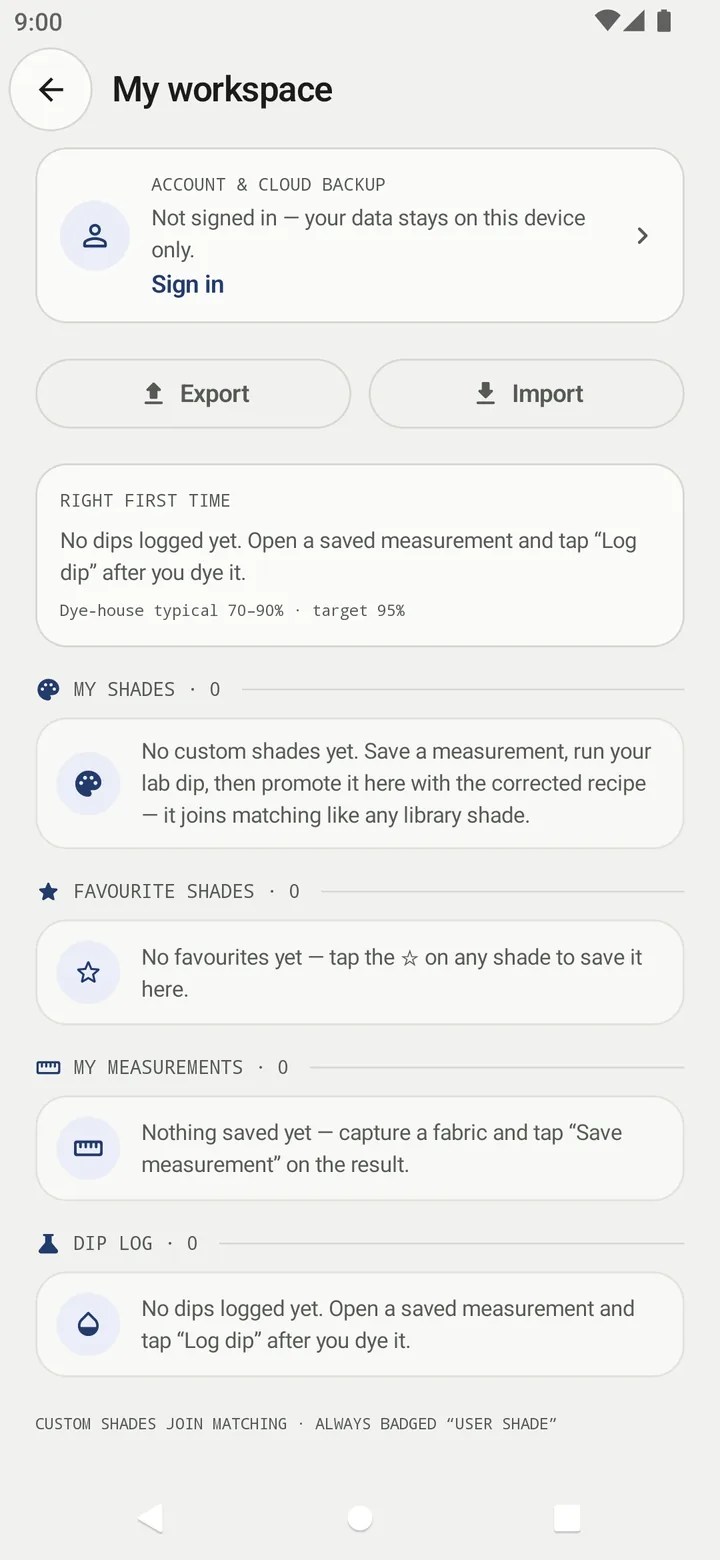
Open My workspace from the home screen. From top to bottom:
- ACCOUNT & CLOUD BACKUP – sign-in status and a link to the account screen.
- Export and Import – move your whole recipe book as a file.
- Right first time – your lab-dip success rate once you log dips.
- My shades – measurements you promoted to custom shades.
- Favourite shades – shades you starred (☆) in the library.
- My measurements – every saved reading.
- Dip log – every lab dip you recorded.
Working with a saved measurement
Each row under My measurements shows the matched shade (for example ≈ Olive, or Unmatched), the date, L* and the spread. The actions are:
| Action | What it does |
|---|---|
| Open / Open result | Rebuilds the result from the saved colour values and re-matches it against today's library |
| Log dip | Records a lab dip for this reading (outcome, correction, process) |
| Promote | Saves the reading as a custom shade with the recipe that worked |
| Delete (bin icon) | Removes the measurement |
Reopening never uses the camera or a scan. The photos and per-shot diagnostics are not stored, so those parts of the result are empty. See From recipe to lab dip for Log dip and Promote.
Export and import a file
- In My workspace, tap Export. The app prepares shadecard-recipe-book.json and opens the share sheet – save it to Drive, email it, or send it to another phone.
- On the other phone, tap Import and pick the file. The app reports Imported n measurements, n shades.
Import merges into what is already there. A file that is not a Shadecard export is refused with Import failed — not a valid Shadecard export.
Cloud backup with an account
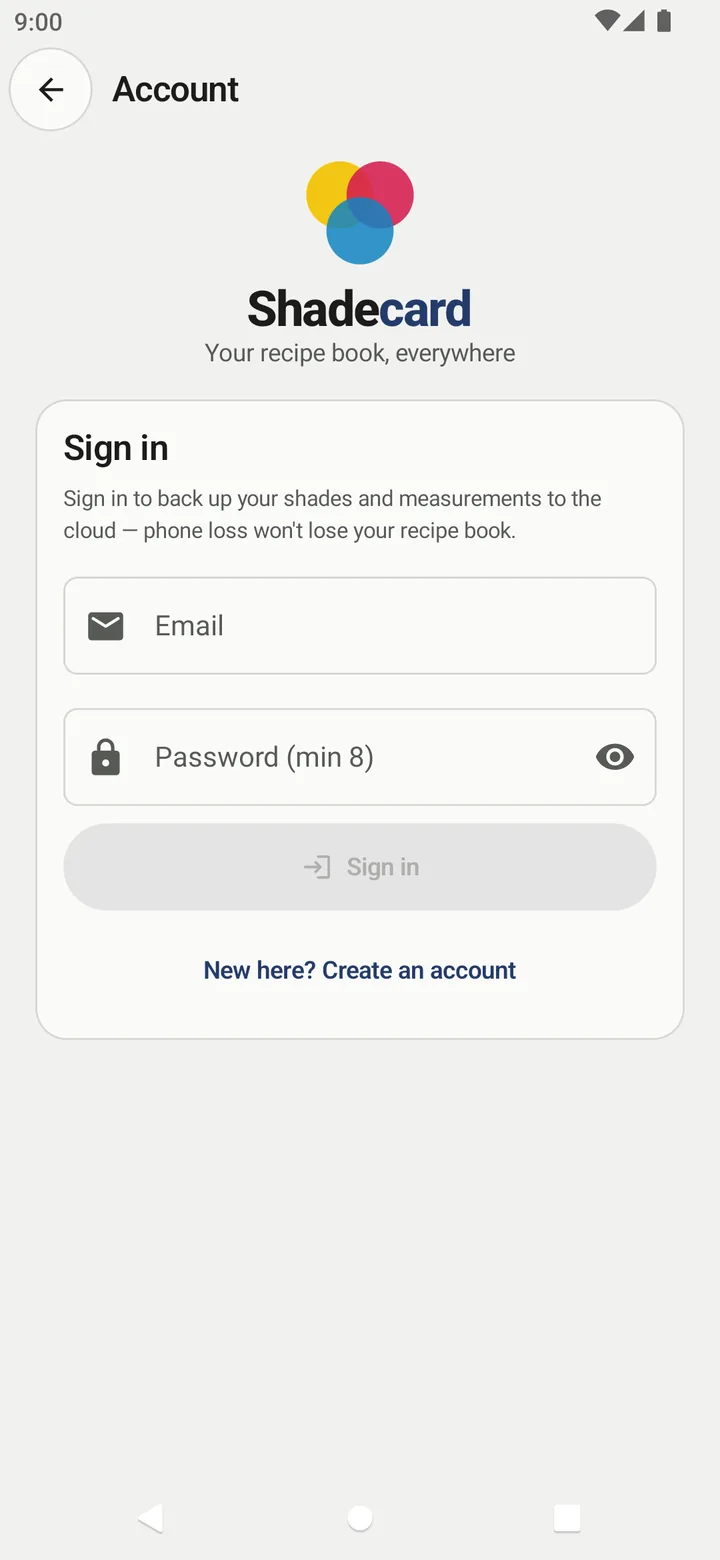
Signing in is optional. Without it, the workspace says Not signed in — your data stays on this device only.
- Tap Sign in on the home screen or in My workspace.
- Enter your Email and Password (min 8) and tap Sign in, or tap New here? Create an account.
- While you are signed in, your shades, measurements and dip log back up automatically. The account screen shows the sync status and a Sync now button.
On a new phone, sign in with the same account and the app pulls your backup and merges it with anything already on the phone.
Privacy and deleting data
- Measurements are computed and stored on the phone. The captured frames are analysed in memory and not written to your gallery.
- Uninstalling the app removes everything held on the device.
- To delete your cloud account and backup, use Delete account on the account screen, or the page at sc.abdohoo.app/delete-account. This cannot be undone; measurements saved on the phone stay on the phone.
Related
Frequently asked questions
Does reopening a saved measurement use a scan?
No. Open rebuilds the result from the stored colour values and matches it against the current library without using the camera or a scan.
Is the photo saved with the measurement?
No. The measurement stores the colour values, match, fibre and recipe, not the photos, so a reopened result has no per-shot details.
What happens to my data if I lose my phone?
If you were signed in, your shades, measurements and dip log are in your cloud backup; sign in on the new phone to restore them. Otherwise, only an exported file can bring them back.
How do I delete my account?
Use Delete account on the account screen in the app, or the self-service page at sc.abdohoo.app/delete-account. It removes the account and its cloud backup; data saved on the phone stays on the phone.
Was this article helpful?
Related articles
- Switch Shadecard to Urdu (اردو) and back to EnglishTap اردو in the English | اردو switch at the top of the home screen. The whole app turns to Urdu, right to left, including warnings and dyeing terms. Tap English to switch back.
- Android app, website and scan packs: what runs whereMeasuring happens in the Shadecard Android app. sc.abdohoo.app is the product website with a live demo. A new install has 3 free scans; scan packs come through Google Play.
- Install Salah Locator and set it up on your Android phoneInstall Salah Locator free from Google Play (Android 8.0 or later), then tap the location button on Find and allow location. Mosques, timetables and Pray Now work without an account.
- Take your first fabric colour reading, step by stepTap Capture dress color, keep White paper selected, lay the paper in the small dashed box and fill the big box with flat fabric, then tap the shutter once and hold still.
Need a hand?
Email us what you see on screen — a screenshot helps — and we'll walk you through it.